Install with the web installer
The easiest way to install POSMaster. Upload the files, open the site in your browser, and a step-by-step installer does the rest. No terminal, no Composer, no phpMyAdmin import and no editing of .env. It works the same on your own computer (XAMPP, WAMP, Laragon) and on web hosting (cPanel and others).
What you need
- The POSMaster files: the folder
laravel-projectfrom the download (it already containsvendor/and the built styles). - An empty MySQL 5.7+ or MariaDB 10.4+ database, with a user name and password. On cPanel, use MySQL Databases: create the database, create a user, and add the user to the database with ALL PRIVILEGES. On your own computer, create an empty database in phpMyAdmin; the user is usually
rootwith no password. - PHP 8.2 or newer. The installer checks everything else for you.
1. Upload the files
On web hosting (cPanel): upload the contents of laravel-project into your website folder (usually public_html), or into a sub-folder such as public_html/shop. Upload a ZIP and use Extract in the File Manager: it is much faster than uploading thousands of files.
On your own computer: copy the contents of laravel-project into a folder under your web root, for example C:\xampp\htdocs\posmaster.
Tip: If your host lets you choose the website's document root, point it to the
publicfolder inside POSMaster (see Point the website to the public folder). If it does not, nothing to do: the.htaccessfile that comes with POSMaster sends visitors topublic/and keeps.envand the app's own folders private.
2. Open the site
Open your website address (for example https://myshop.com, https://myshop.com/shop or http://localhost/posmaster). POSMaster sees that it is not installed yet and opens the installer at /install.
If you see "POSMaster cannot start the installer yet", the web server cannot write to the POSMaster folder: set the permissions of storage and bootstrap/cache (and their sub-folders) to 775 in the File Manager and reload the page.
3. Follow the steps
-
Welcome: choose English, Français or العربية. This is also the language of your shop.
-
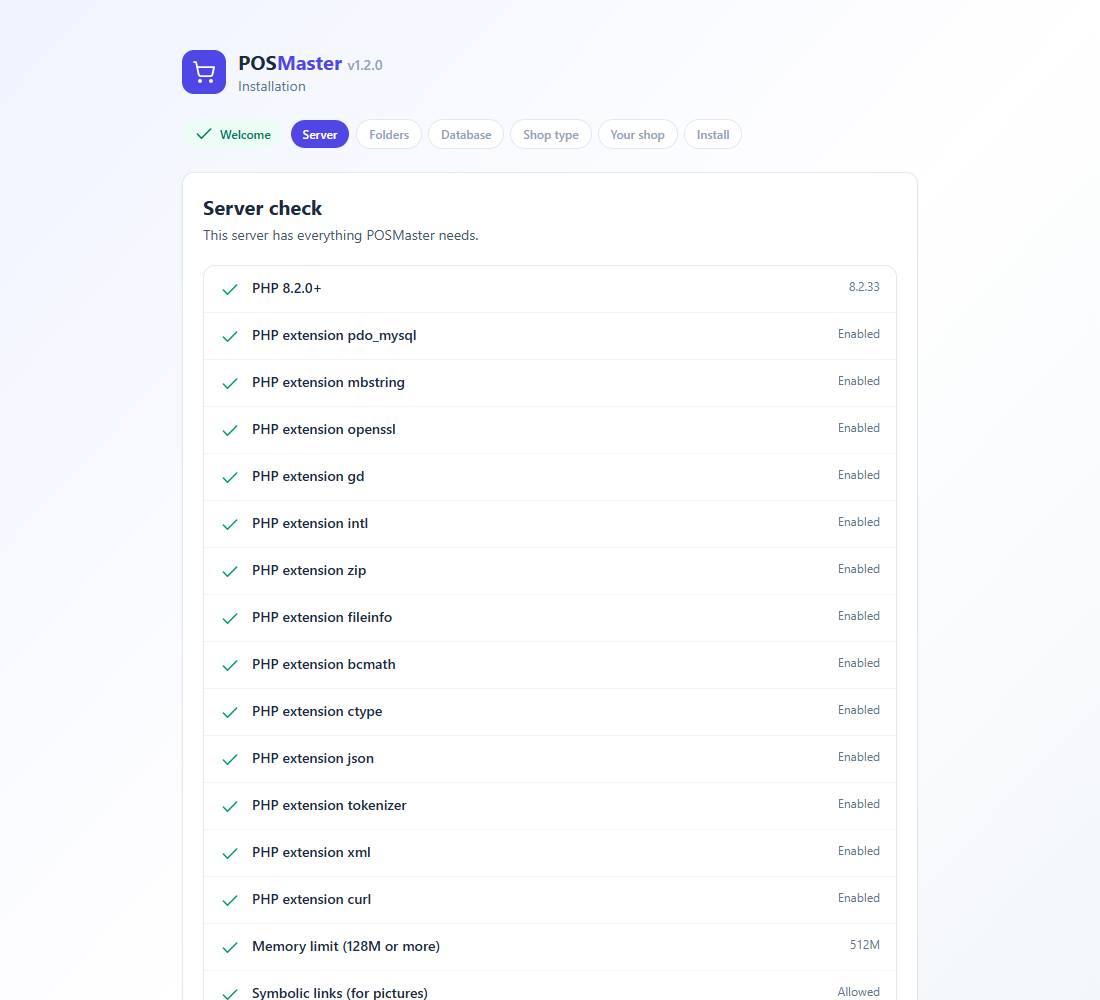
Server check: every line should have a green tick. A red cross tells you what to change, for example "Turn on the intl extension in cPanel → Select PHP Version → Extensions". Amber lines are only warnings. Click Check again after a change.
-
Folder permissions:
storage,bootstrap/cacheand the.envfile must be writable. -
Database: type the host (usually
localhostor127.0.0.1), port (3306), database name, user and password, and click Test and continue. Nothing is saved until the connection works. If the database already holds a POSMaster shop, the installer asks you to tick Yes, replace the POSMaster tables in this database first.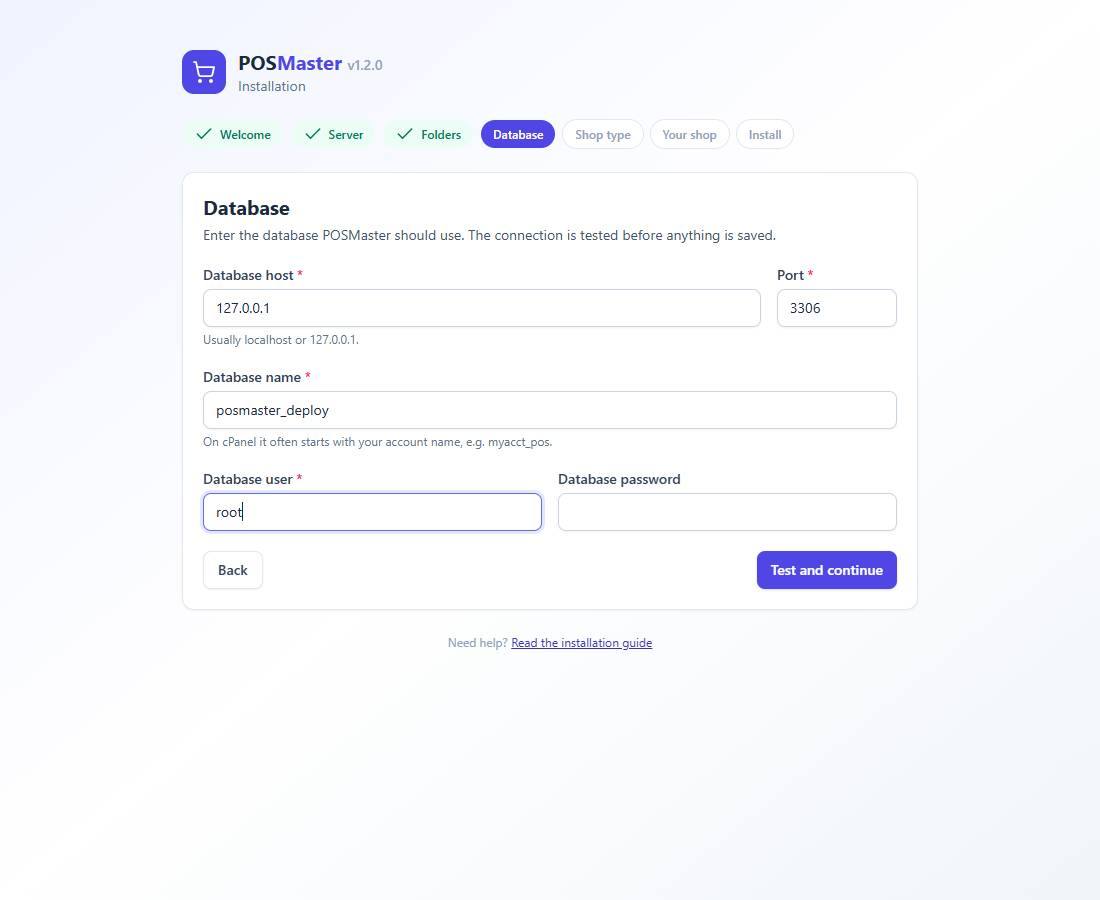
-
Shop type: Clean shop (recommended: an empty shop for your products) or Demo shop (81 products, 90 days of sales and the demo accounts, with demo mode on).
-
Your shop (clean shop only): business name, currency symbol, language, timezone and your Super Admin account (name, email and a password of at least 8 characters).
-
Install: click Install now and keep the page open. A progress bar shows the work; it usually takes less than a minute. If the connection drops, click Try again: the installation continues where it stopped.
4. Finished
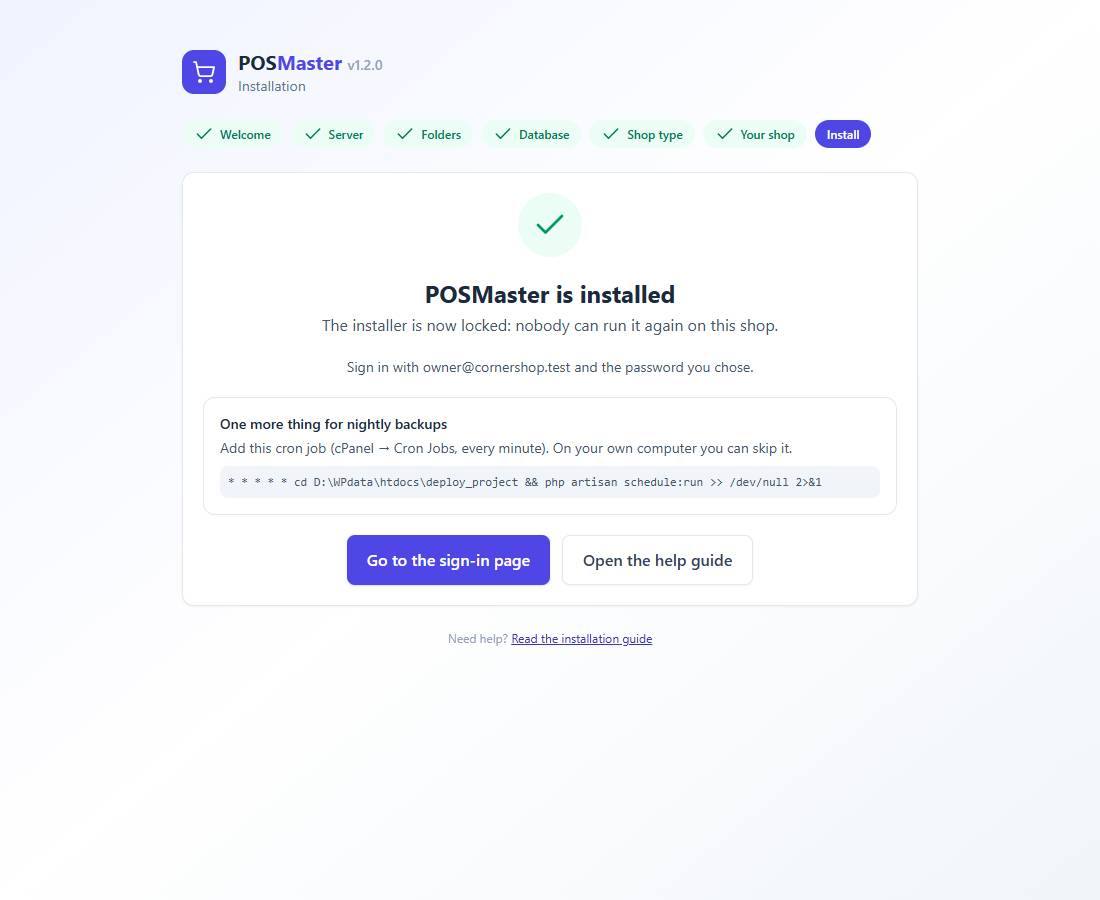
- Click Go to the sign-in page and sign in with the email and password you chose. For the demo shop, use the demo accounts shown (password
password). - The installer is now locked:
/installno longer exists, so nobody can run it again on your shop. - On web hosting, add the cron job shown on the last page (cPanel → Cron Jobs, every minute). It runs the nightly backups. On your own computer you can skip it.
The installer also switches the app to production mode (no error details for visitors), saves the database settings in .env, and sets up the picture folder. Where the host does not allow symbolic links, pictures are served through POSMaster itself.
Troubleshooting the installer
The database step says "The user name or password is wrong". Check them in cPanel → MySQL Databases. On cPanel the full names usually start with your account name, for example myacct_pos and myacct_posuser.
"The database does not exist" or "This user has no access to that database". Create the database first, then add the user to it with ALL PRIVILEGES.
The page shows a 500 error or a blank page. Check that PHP 8.2+ is selected for this site and that the folders storage and bootstrap/cache are writable. The details are in storage/logs/laravel.log.
I want to install again from scratch. Delete the file storage/app/private/installed and the .env file, then open the site again. Use an empty database, or tick the replace box on the database step: all data in that shop is lost. Make a backup first.
I prefer the terminal or phpMyAdmin. Both still work: see Install on your computer, Install on web hosting and Install with an SQL file.