Products
Everything you sell is a product. This page shows how to add, change, import and export products. Open it from Catalogue → Products.
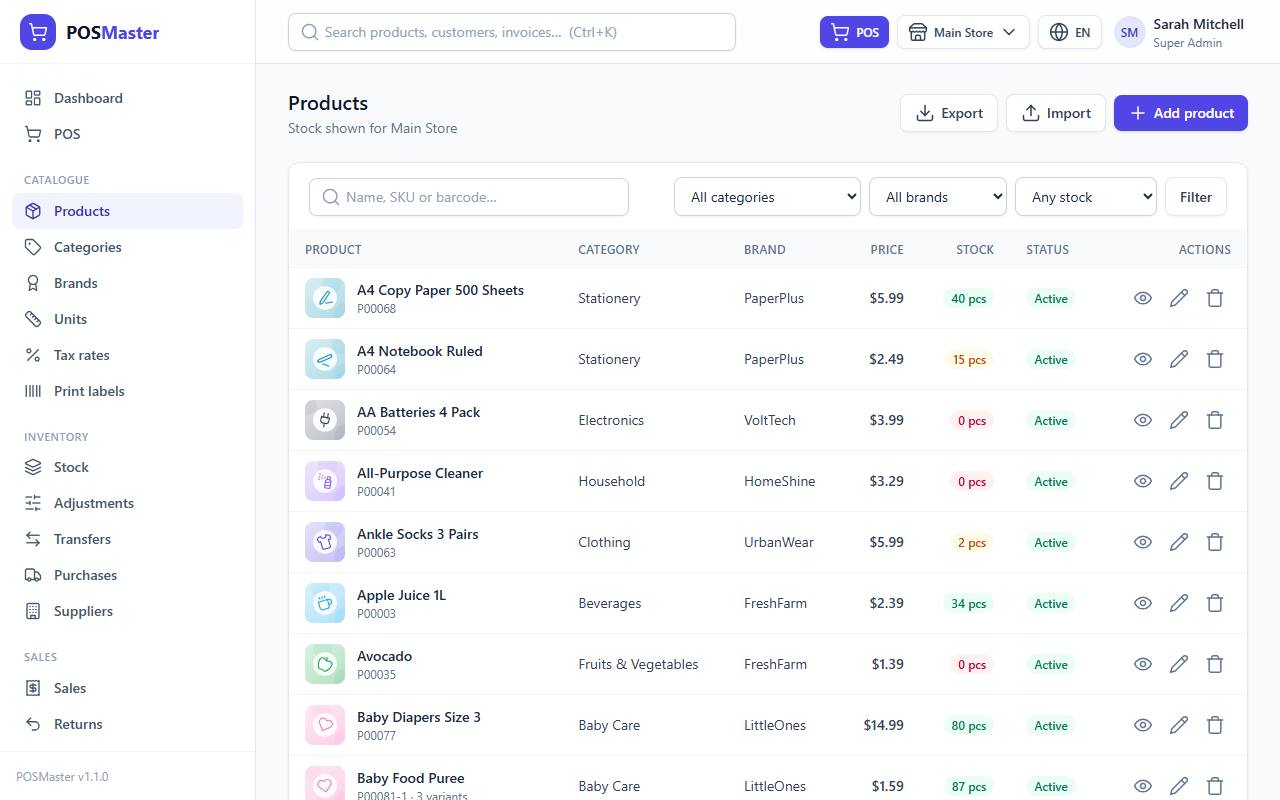
Find products in the list
The list shows the name, SKU, category, brand, price, stock and status of each product. A product with several variants shows its number of variants and a price range (for example 10.00 – 14.00).
- Search - type part of a name, or the start of a SKU or barcode. Suggestions appear as you type; press Enter to filter the table.
- Category and Brand - choose one from the drop-downs.
- Any stock / In stock / Low stock / Out of stock - filter by stock level.
- Click Filter to apply the drop-downs.
The Stock column always shows the stock of the branch you are working in (see the sub-title under the page title). The badge is green when stock is healthy, yellow when it is at or below the Low stock alert at level, and red when it is zero.
Tip: To see stock in another branch, open the product page, or use the Stock page.
Add a single product
A single product has one price and one barcode, such as a bottle of water.
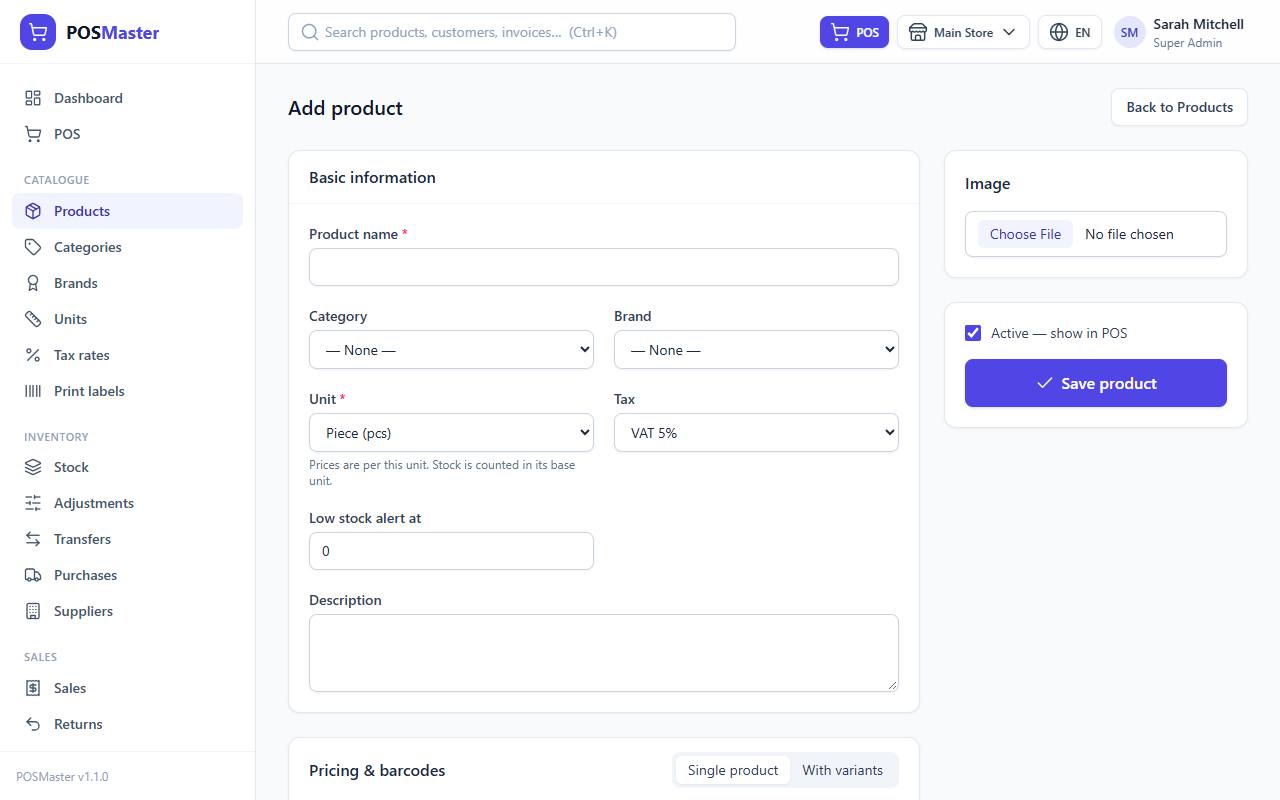
- Click Add product.
- Under Basic information fill in:
- Product name (required)
- Category and Brand (optional)
- Unit (required): the unit your price is for, for example Piece (pcs). See Units and price per unit.
- Tax: the tax rate to add on top of the price. New products start with the default tax chosen in Settings → Sales & receipts.
- Low stock alert at: when stock falls to this number the product is shown as low.
- Description
- Under Pricing & barcodes keep Single product selected and fill in Cost (what you pay), Price (what the customer pays) and, if you already have items on the shelf, Opening stock.
- Leave SKU and Barcode empty to let the system create them, or type your own.
- Choose a picture under Image if you like.
- Keep Active — show in POS ticked and click Save product.
You land on the product page. The product is ready to sell right away.
Note: Cost and Price are required. Enter 0 if you do not know the cost yet. A later purchase updates the cost for you.
Add a product with variants (size and colour)
Use variants when the same product comes in different sizes, colours or flavours and each one needs its own stock, SKU and barcode. The sellable item in the POS is always a variant, so a product with variants lets you sell and count "T-shirt Red / M" and "T-shirt Blue / L" separately.
- Click Add product and fill in the basic information.
- Under Pricing & barcodes click With variants.
- A box for combinations appears. In the first field type the values of the first attribute separated by commas (for example
S, M, L). In the second field type the second attribute (for exampleRed, Blue). - Click Generate. One row is created for every combination: S / Red, S / Blue, M / Red and so on. If you only fill one field you get one row per value.
- Check the rows. Each has its own Variant name, SKU, Barcode, Type, Cost, Price and Opening stock. The generator copies the cost and price of the first row, so type them in the first row before you click Generate.
- Use Add variant for an extra row, or ✕ to remove one.
- Click Save product.
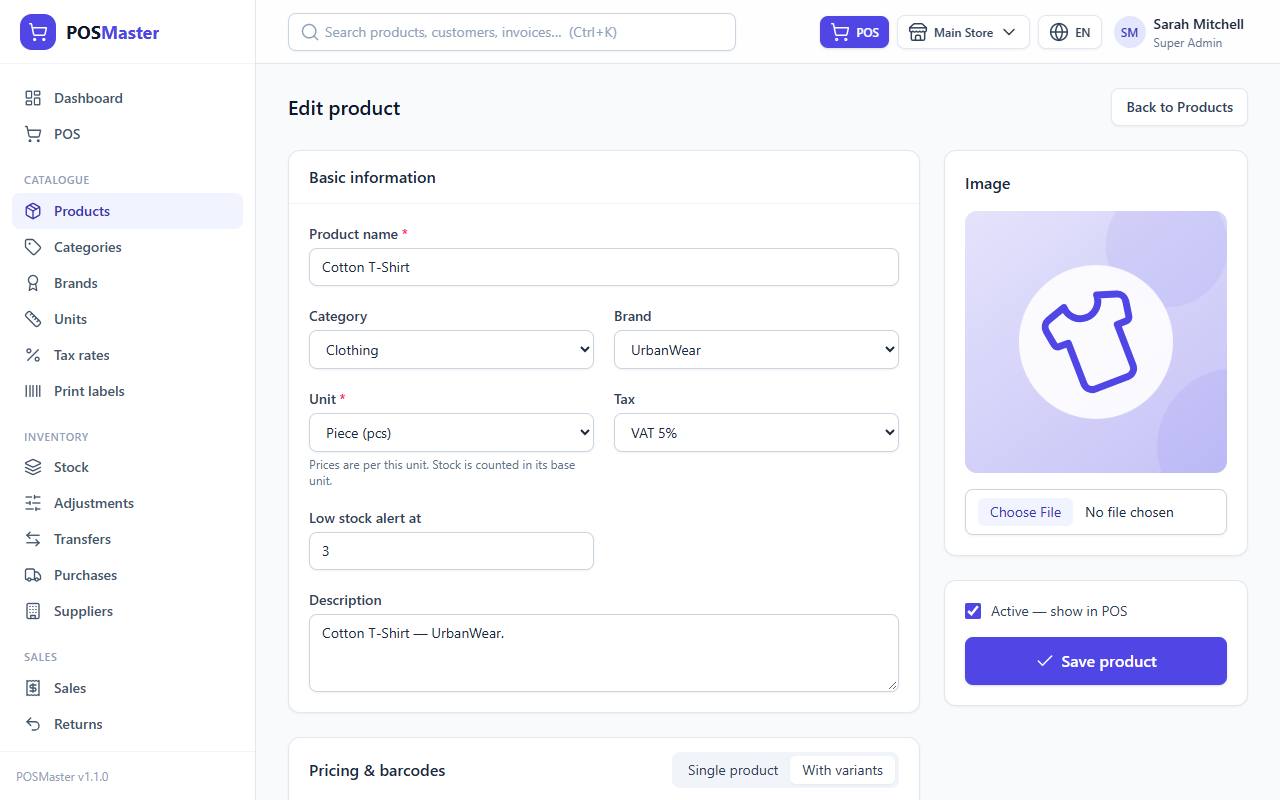
Warning: Every variant needs a name (for example Red / L). The form refuses to save without it.
If you later remove a variant that already has sales, purchases or stock history, the system keeps it so your history stays correct.
Units and price per unit
The Unit you pick on the product is the unit the Price and Cost are for. If the unit belongs to a family (Piece, Pack = 6 pieces, Box = 12 pieces), the cashier can also sell the product in the other units of that family.
Example: you set the unit to Piece and the price to 2.00.
- Selling 1 pcs costs 2.00.
- Selling 1 Box (12) costs 24.00 (the POS multiplies the price by the factor).
- Stock is always counted in the base unit (pieces). One box sold takes 12 pieces out of stock.
If you instead set the product's unit to Box with price 24.00, one piece costs 2.00. Create and manage units under Catalogue → Units; see Categories, brands, units and taxes.
Barcodes and SKUs
Each variant has a SKU (your internal code) and a Barcode.
| Barcode type | When to use it |
|---|---|
| EAN-13 (default) | The retail standard. If you leave the barcode empty, the system makes a valid 13-digit code that starts with 2 (the range reserved for in-store use). If you type your own, use 12 or 13 digits. |
| Code 128 | Any text or numbers, for example a supplier's code or an existing label. |
- Leave empty = automatic. An empty SKU becomes
P00012(orP00012-1,P00012-2for variants). An empty EAN-13 barcode is generated. With Code 128 and no barcode, the SKU is used as the barcode. - SKU and barcode must be unique across all products. If one is taken you see "This sku is already used by another product."
- Existing barcodes are kept when you edit a product, so printed labels stay valid.
- The POS scanner finds a variant by exact barcode or exact SKU. To print labels see Print barcode and QR labels.
Opening stock
The Opening stock column on the add form puts that quantity into stock when the product is created.
- It goes to the branch you are working in right now. Switch branch before you save if it belongs elsewhere.
- It is only on the Add form. After the product exists, change stock with a purchase, a stock adjustment or a transfer.
- It is written in the stock ledger as an Opening movement, so you can always see where it came from.
Image and active flag
- Image: choose a picture (up to 2 MB). A preview shows next to the form. It appears in the product list, the POS grid and search suggestions. Without a picture the first two letters of the name are shown.
- Active — show in POS: untick it to hide the product from the POS and from the search suggestions without deleting it. Inactive products show a grey Draft status in the list. Use this for seasonal items.
The product page
Click a product name in the list to open its page.
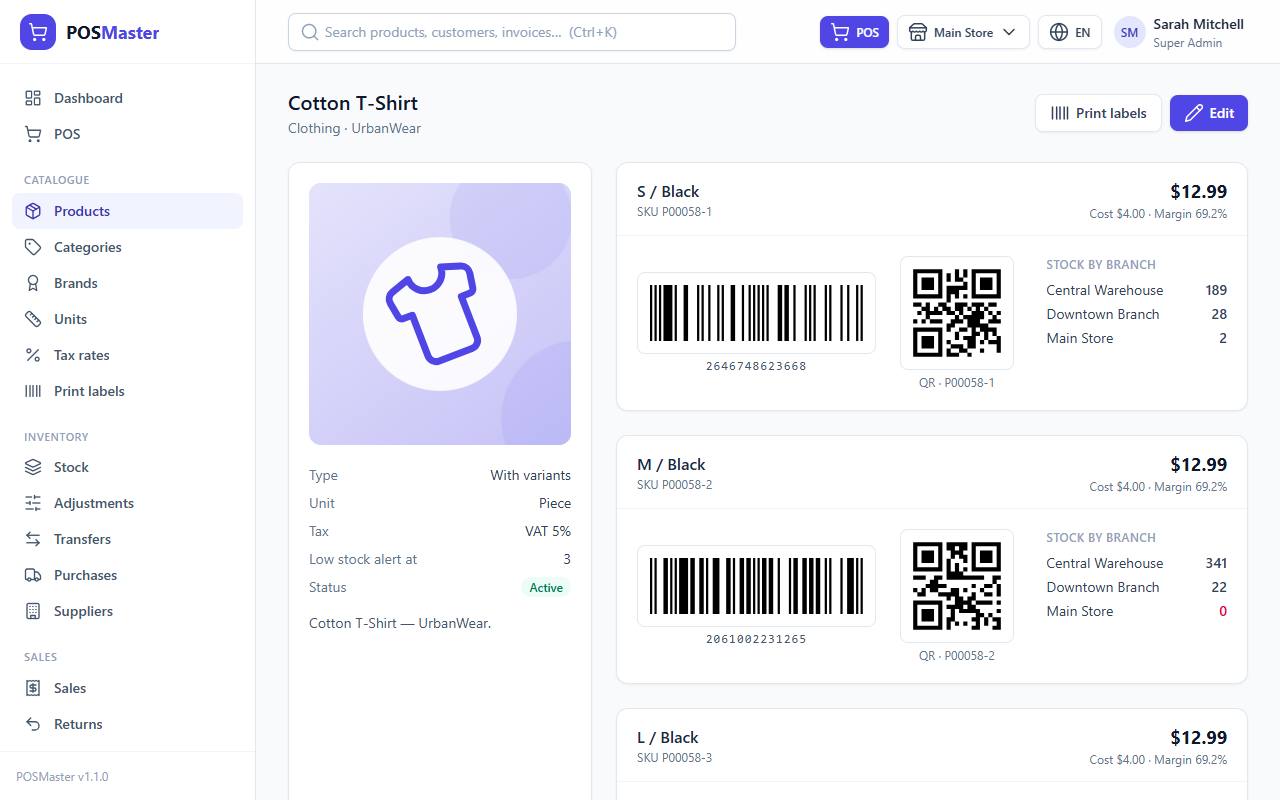
For each variant you see:
- price, cost and margin (%),
- a scannable barcode and a QR code (the QR contains the SKU),
- Stock by branch for every branch.
Below that, Recent stock movements lists the last 15 movements (sales, purchases, adjustments...). View all opens the full ledger filtered to this product. The Print labels button opens the label printer with all variants of this product already added.
Edit a product
- Click the pencil icon in the list, or Edit on the product page.
- Change what you need and click Save product.
Existing sales keep the name and price they were sold at; only new sales use the new price. The Opening stock column is not shown on the edit form.
Delete a product
- Click the trash icon in the list and confirm Delete this product?.
The product disappears from lists and the POS, but old invoices still show it. You need the products.delete permission. In demo mode the Delete button is hidden and the server refuses deletes, so you cannot delete products on a demo site. If you only want to stop selling a product, untick Active instead.
Import products from a CSV file
You can add many products at once from a spreadsheet saved as CSV.
- Click Import (you need permission to create products).
- Click Download template to get an example file.
- Fill in your products in Excel, Google Sheets or LibreOffice and save as CSV.
- Back on the import page choose the file under Upload CSV file and click Import.
CSV columns
name, variant, sku, barcode, category, brand, unit, tax_rate, cost_price, sale_price, alert_qty, stock
- Only name and sale_price are required. The header row must be there.
- Rows with the same name become variants of one product. Put the variant name (for example
Red / M) in thevariantcolumn. A name used once becomes a single product. - category and brand: missing ones are created for you.
- unit: the short name of an existing unit (
pcs,kg...). Unknown or empty units fall back to the first base unit. - tax_rate: a number such as
5. A matching tax rate is reused or created. - sku and barcode: leave empty to generate them. A barcode that is not 13 digits is saved as Code 128.
- stock: opening stock, added to the current branch.
- Settings for the product itself (category, brand, unit, tax, alert) are read from the first row of each product.
Skipped duplicates
A product whose name already exists is skipped, not changed. After the import you see how many products were imported and the names that were skipped (the first 10). Rows that fail (for example a barcode that is already used) are skipped with the reason. Import does not update existing products; edit them in the app.
Tip: Import a few rows first to check your file, because a second import of the same names is skipped.
Export products
Click Export to download all products as products-YYYYMMDD.csv. It has the same columns as the import template, so you can edit it and import it into another shop. The stock column holds the stock of the current branch.