Sales, returns and voids
Every sale you make at the POS becomes an invoice. Find them under Sales → Sales in the left menu. This page explains how to look up an invoice, reprint a receipt, collect money from a customer, take items back and cancel a sale.
The sales list
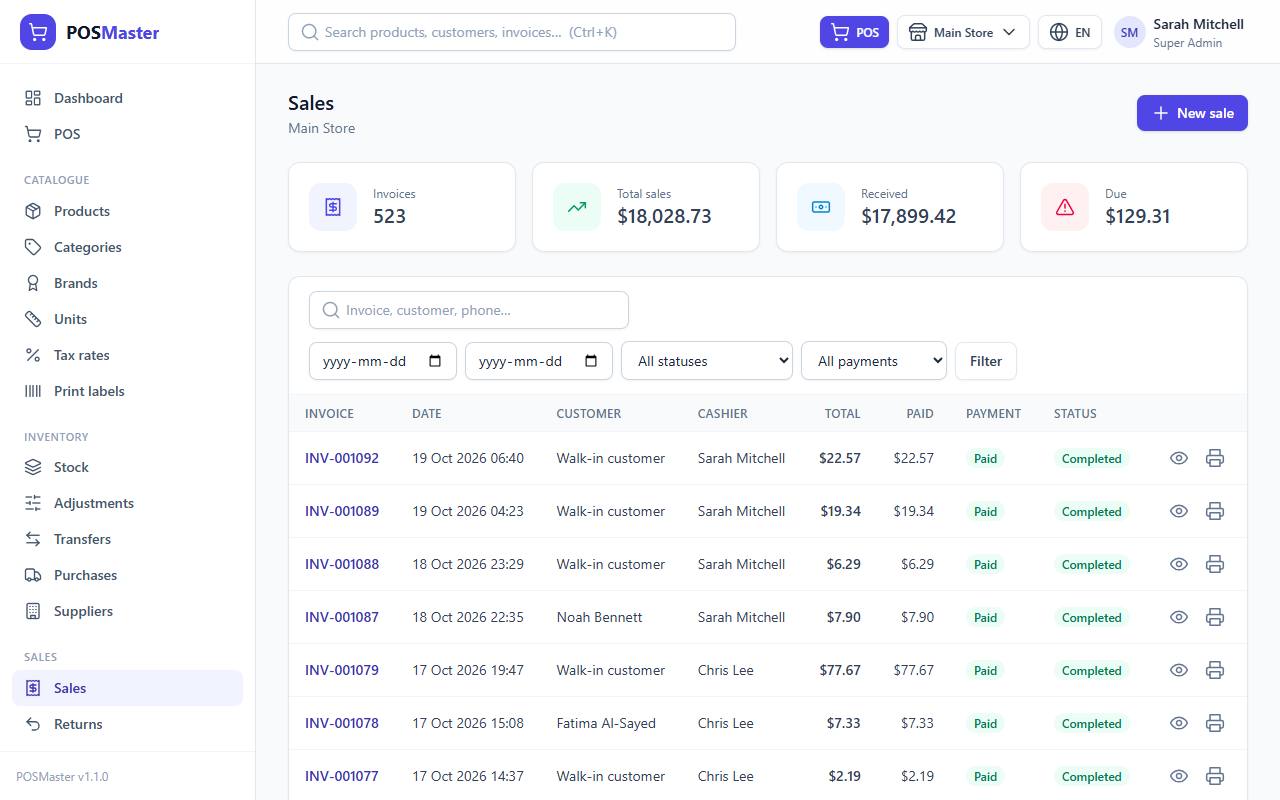
The list shows the invoices of the branch you are working in, newest first. For each invoice you see the number, date, customer, cashier, total, amount paid, payment status and sale status.
A yellow Offline badge next to an invoice number means the sale was made while the POS was offline and synced later. Hover over the badge to see its temporary number (OFF-…). See Offline mode.
Totals at the top
Four tiles add up the invoices that match your filters (voided sales are not counted): Invoices, Total sales, Received and Due.
Filter the list
- Search by invoice number, customer name or phone.
- From and To dates.
- Status: Completed, Partially returned, Returned, Voided.
- Payment: Paid, Partial, Due.
Click Filter to apply. The tiles update with the filter, so choose a date range to see the takings for that period.
| Sale status | Meaning |
|---|---|
| Completed | Normal sale. |
| Partially returned | Some items were returned. |
| Returned | All items were returned. |
| Voided | The whole sale was cancelled. |
| Payment status | Meaning |
|---|---|
| Paid | Fully paid. |
| Partial | Part paid, the rest is due. |
| Due | Nothing paid yet. |
Open an invoice
Click an invoice number (or the eye icon). The invoice page shows:

- every item with quantity, price, discount, tax and total (returned items are flagged Returned: n),
- the totals: subtotal, promotions, item discounts, order discount, coupon, tax, total, paid, change and due,
- the customer, the cashier and the loyalty points earned and used,
- the list of Payments with method, date and reference,
- the Returns made against this invoice.
For a sale made offline, the line under the title shows Offline sale and the temporary number printed on the customer's receipt.
Reprint a receipt
- In the list click the printer icon, or open the invoice and click Print.
- The receipt opens in a new tab. Click Print and choose your printer.
The receipt follows your receipt settings (paper size 58 mm, 80 mm or A4, header, footer, logo, tax line, invoice barcode) in Settings → Sales & receipts. You can reprint a receipt as many times as you like.
Download or email an invoice
Open the invoice and click:
- PDF to open an A4 invoice as a PDF in a new tab, ready to save or print,
- Email to send that PDF to the customer. Their email address is filled in if they have one, and you can add a message.
Sale returns have the same buttons: open a return under Sales → Returns to download or email it as a Credit note. See PDF and email.
Add a payment to a sale with a balance due
When a customer bought on credit (see Sell on credit) and comes back to pay:
- Open the invoice. If an amount is Due, a form appears under Payments.
- Choose the Method: Cash, Card, Mobile or Bank.
- Check the Amount. It starts with the full balance. You cannot enter more than what is due.
- Add a Reference (optional) and click Add payment.
The invoice changes to Partial, then Paid when nothing is left. You need the sales.edit permission. Payments cannot be removed; to cancel a wrong sale use a void.
Return items
A return takes items back from a customer. You need the sales.return permission.
- Open the invoice and click Return. The button is hidden for voided sales and for sales that were already fully returned.
- In the Return qty column type how many of each item come back. The box limits you to what is left to return. Leave 0 for items that stay with the customer.
- Choose the Refund method: Cash, Card, Mobile or Bank.
- Add a Reason / note if you wish.
- Click Save return.
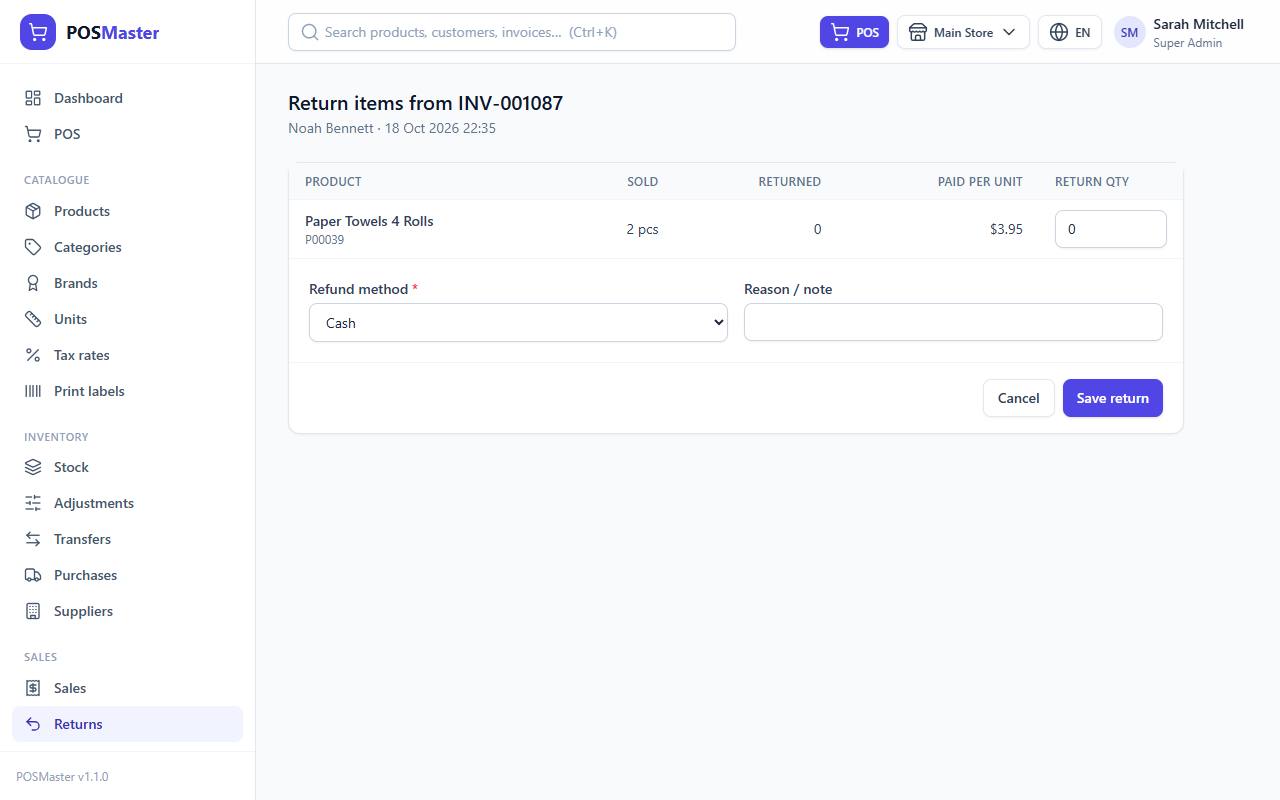
You land on the return page. Each return gets its own number, and returns are listed under Sales → Returns (search by return number or invoice number).
What a return changes
- Partial returns are fine. The sale becomes Partially returned. When everything has been returned it becomes Returned. You can return more later, until all items are back.
- Price refunded is what the customer actually paid for each unit, after discounts and tax, shown in the Paid per unit column.
- Stock goes back to the branch of the sale, in the base unit of what was sold.
- Due is reduced first. If the customer still owes money on the invoice, the return value first cancels that balance. Only the remaining value is money you give back, using the refund method.
- Loyalty points are reversed. The points the customer earned are taken back in proportion to the value returned (never more than the customer has).
- Points that the customer spent and gift card money are not given back by a return. Void the sale if you need that.
Void a sale
A void cancels a whole sale, as if it never happened, but keeps a record of it. You need the sales.void permission.
- Open the invoice.
- Click Void and confirm "Void this sale? Stock, gift cards and points will be restored."
Only a completed sale can be voided. A sale that has any return, or is already voided, cannot be voided. For a partly returned sale use a return for the rest.
A void:
- puts all items back in stock,
- gives the money back to the gift card that was used,
- reverses the loyalty points earned and gives back the points spent,
- gives the coupon use back so it can be used again,
- clears any due amount and sets the status to Voided.
The invoice stays in the list with the Voided badge and is left out of the totals, the dashboard and the reports. Refunding the customer in cash or card is up to you, outside the program.
Why sales are never deleted
There is no delete button on sales, returns or payments, in any role. This is deliberate:
- Your reports and taxes must still add up next year.
- Invoice numbers stay in order with no gaps that someone could question.
- If staff could delete a sale they could also hide cash taken from the till.
If you made a mistake, void the sale (and sell again correctly) or make a return. Both keep a full record of who did it and when; administrators can also see it in the Activity log.