Demo mode
Demo mode turns POSMaster into a safe playground. Visitors can try almost everything, but they cannot delete data or change the things that would lock you out or spoil the shop (passwords, users, roles, languages and business settings). Use it for a public preview of your system, a training session or a sales demo.
Warning: Do not leave demo mode on in a real shop. It stops everyone, including you, from deleting records.
What demo mode blocks
When demo mode is ON, these are refused on the server, not only hidden:
| Blocked | Details |
|---|---|
| Every delete | Any request that deletes something (a product, customer, expense, category, user and so on) is refused. A second safety net inside the app also stops any record from being deleted by any other route. The only exception is discarding a held POS sale, which is housekeeping. |
| Passwords and profile | My profile and Change password are disabled. Nobody can change a password, not even the Super Admin. |
| Users | Adding, editing or removing users. |
| Roles and permissions | Adding or editing roles. |
| Languages | Adding, editing, uploading translation files and making a language the default. |
| Business settings | Saving any Settings tab (business name, currency, receipts, loyalty and so on). |
| The demo switch itself | While demo mode is ON the switch is hidden from everyone, including Super Admins. It is turned off only on the server with php artisan pos:demo off. |
On screen, the delete buttons (trash icons) are hidden everywhere. If someone still finds a way to send a blocked request, they see the message "This action is disabled in demo mode."
A yellow Demo mode badge appears in the top bar, and the login page shows the Demo accounts with a click-to-fill button for each one.
Note: Hiding a button is never the only protection. The server also refuses the request, so typing an address by hand or changing the page does not help.
The Super Admin exception
When demo mode is on but not locked, a Super Admin can still use the protected actions: change settings, and manage users, roles and languages. Deleting stays blocked even for the Super Admin, and so do password changes: nobody changes a password while demo mode is on, including the Super Admin (their own password or anyone else's). When editing a user, the password fields are not shown. This lets the owner prepare the demo and then switch demo mode off again.
When demo mode is locked by POS_DEMO_LOCK (see below), nobody can use the protected actions, not even the Super Admin.
Turn demo mode on
Only the Super Admin (or any role you give the settings.demo permission) can turn demo mode on, and only while it is off.
- Sign in as Super Admin.
- Open Administration → Settings → System & demo.
- Click Turn demo mode ON and confirm.
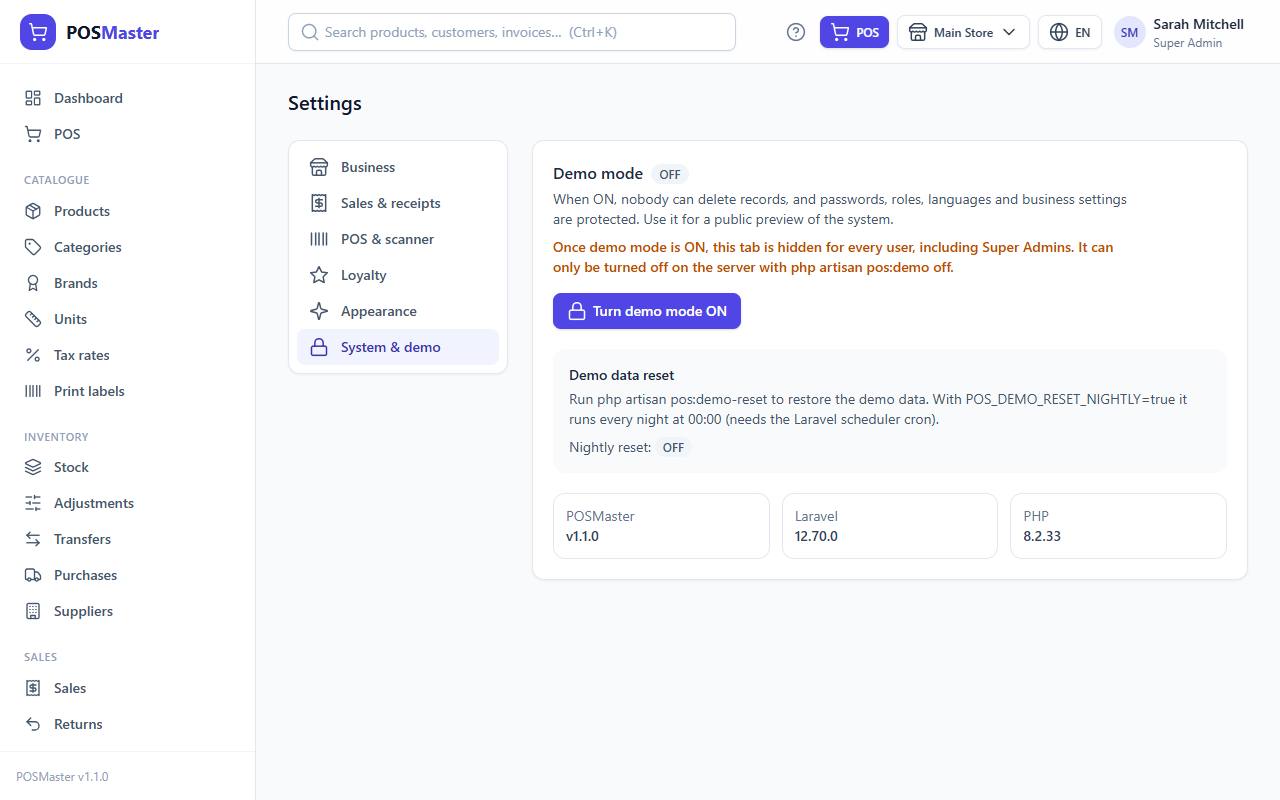
Important: The switch works one way only. As soon as demo mode is ON, the System & demo tab disappears for every user, including Super Admins. So a demo visitor who signs in with the demo Super Admin account can never turn demo mode off. Turning it off is done on the server (see Turn demo mode off).
The page also shows the state of the nightly reset and the POSMaster, Laravel and PHP versions. Turning demo mode on is written to the Activity log.
A new SQL install (schema.sql) starts with demo mode OFF. The demo-data install (seed.sql, or pos:install --demo) starts with demo mode ON.
Lock demo mode for a public server: POS_DEMO_LOCK
On a public demo website, you do not want a visitor, or even a forgotten Super Admin login, to turn demo mode off. Add this to the .env file on the server:
POS_DEMO_LOCK=true
With the lock on:
- Demo mode is always ON.
php artisan pos:demo offrefuses to run until you setPOS_DEMO_LOCK=false.- The Super Admin exception above does not apply.
To work on the server again, set POS_DEMO_LOCK=false (or remove the line). If your site uses a cached configuration, run php artisan config:clear after editing .env.
Reset the demo data every night
Visitors will create and edit things. To keep the demo tidy, restore the original data every night at 00:00.
-
Put this in
.env:POS_DEMO_RESET_NIGHTLY=true -
Make sure demo mode is ON (the reset is skipped when it is off).
-
Add the Laravel scheduler to your server's cron, so it runs every minute:
* * * * * cd /home/USER/posmaster && php artisan schedule:run >> /dev/null 2>&1On Windows, create a Task Scheduler task that runs
php artisan schedule:runevery minute. With Docker, theschedulerservice that comes withdocker-compose.ymlalready does this. -
The reset runs once per night at 00:00 (server time). It never overlaps with itself.
Note: Without the cron entry, nothing runs and the "Nightly reset" badge on the System & demo page may say ON while nothing happens.
Reset the demo data now
Run this in a terminal, in the application folder:
php artisan pos:demo-reset
It deletes the pictures uploaded by visitors, rebuilds the database and loads the demo shop again (3 branches, products, customers, 90 days of sales, coupons, gift cards, promotions, expenses and one account per role). It takes a little while.
- If demo mode is OFF, the command stops and asks you to use
--force. This protects a live shop from being wiped by mistake. - To run it anyway:
php artisan pos:demo-reset --force.
Warning:
pos:demo-reseterases the whole database, including real sales. Never run it on a shop you use for real.
Demo accounts
All demo accounts use the password password.
| Role | |
|---|---|
| Super Admin | superadmin@posmaster.test |
| Admin | admin@posmaster.test |
| Manager | manager@posmaster.test |
| Cashier | cashier@posmaster.test |
| Demo | demo@posmaster.test |
The login page lists Super Admin, Demo, Manager and Cashier as quick buttons while demo mode is on. Click one to fill in the email and password, then press Sign in.
The Demo role is made for the public: it can view, create and edit nearly everything, but it cannot delete, cannot void sales, and cannot edit settings, users, roles or languages.
What a demo visitor can still do
A lot. That is the point of a demo. A visitor can:
- Browse the dashboard and every report.
- Sell in the POS with scanning, discounts, coupons, gift cards and points; hold and resume sales; print receipts.
- Add and edit products, variants, customers, suppliers, coupons, promotions and expenses.
- Receive purchases, adjust stock, transfer stock between branches and take returns.
- Create, print and convert quotations.
- Switch branch and switch language (English, French, Arabic).
What they cannot do is delete, void a sale, or touch settings, users, roles, languages and passwords. Because everyone can still add and edit, the nightly reset is the real protection that keeps the demo clean.
Turn demo mode off
Demo mode cannot be turned off inside the app; that is what keeps a public demo safe. Do it on the server:
- Make sure
POS_DEMO_LOCKis nottruein.env. - Open a terminal in the POSMaster folder and run:
With Docker:php artisan pos:demo offdocker compose exec -u www-data app php artisan pos:demo off. - Reload the app. The badge in the top bar disappears, the delete buttons come back, and Settings → System & demo is visible again.
- Set
POS_DEMO_RESET_NIGHTLY=falsein.envif it was on.
php artisan pos:demo on turns it on again from the terminal.