Point of sale (POS)
The POS is the screen the cashier uses all day to sell. It is built to be fast: you can sell with a barcode scanner, a touch screen or the keyboard only.

Tip: Learn four keys and you can sell without the mouse: F2 search, F4 customer, F8 hold, F9 pay. See Keyboard shortcuts.
Open the POS
- Check the branch name in the top bar. Sales are always made from the branch you are working in.
- Click POS in the left menu (or the POS button in the top bar, or Open POS on the dashboard).
The POS opens full-page. On the left you have the search box, the category bar and the product grid. On the right you have the cart. The house icon at the top left takes you back to the dashboard. You need the pos.access permission to use this screen.
Warehouse branches cannot sell
If the current branch is a warehouse, a yellow message says "... is a warehouse. Switch to a store branch to sell." and the Pay button stays disabled. Click the branch name in the top bar of any other page and choose a store branch. The server also refuses a sale from a warehouse.
Full screen
Click the Full screen button (the square arrows) at the end of the top bar to hide the browser bars. Click it again, or press Esc, to leave full screen.
Buttons in the top bar
Next to the search box you find:
| Button | What it does |
|---|---|
| Help (question-mark icon) | Opens this help page. |
| Kitchen | Prints a prep ticket for the current cart. Only shown when kitchen tickets are turned on. See Send an order to the kitchen. |
| Display | Opens the customer display in a new window. See Customer display. |
| Full screen | Hides the browser bars (see above). |
On smaller screens the Kitchen and Display buttons show only their icon.
Find products
You have four ways to put a product in the cart. You can mix them freely.
Search by name, SKU or barcode
- Press F2 or click the search box (Scan barcode or search product…).
- Type part of the product name, the start of the SKU or the start of the barcode.
- A list shows up to 15 matches with the price and the stock of this branch.
- Click a product, or move with ↓ / ↑ and press Enter.
The product is added to the cart and the box is cleared, ready for the next item.
Note: If you type a name and press Enter without choosing from the list with the arrow keys, POS treats the text as a barcode or SKU. It must match exactly, otherwise nothing is added. Use the arrow keys or click when you search by name.
Pick from the product grid
The grid shows one tile per active product: picture (or its first two letters), name, price and the quantity in stock in this branch. Scroll down and more products load automatically.
- Click a tile to add one piece to the cart.
- A product with several variants shows the lowest price with a + (for example 14.99+) and "3 variants". Click it to open the variants picker.
- You can hide the pictures in Settings → POS & scanner (Show product images in POS grid).
Filter by category
The bar above the grid has All and one button per category. Click a category to show only its products, click All to go back. Categories without active products are not listed.
Choose a variant
When you click a product that has variants (for example size and colour), the Choose a variant window opens. Each button shows the variant name, its price and its stock. Click one to add it. The window closes by itself.
Sell with a barcode scanner
A USB or Bluetooth barcode scanner works like a keyboard that types the code and then presses Enter.
- Make sure the cursor is in the search box. Press F2 if it is not.
- Scan the barcode.
- The product is added with quantity 1. Scan the same product again to add one more.
The scanner matches the barcode or the SKU exactly. If the code is unknown, nothing is added and (when the beep is on) you hear a low error tone.
To hear a short beep for each item added, turn on Settings → POS & scanner → Beep when an item is added.
Tip: Printed QR labels contain the SKU, so a scanner that reads QR codes works with them too. See Print barcode and QR labels.
Sell with the camera
You can scan with the camera of a phone, tablet or laptop instead of a scanner.
- Ask your administrator to set Settings → POS & scanner → Barcode / QR scanning to Device camera only or Scanner and camera. The camera button only appears in those modes.
- Click the camera button at the right end of the search box.
- Allow camera access when the browser asks.
- Hold the barcode or QR code inside the frame. After a successful read the window closes and the product is added.
Warning: Browsers only allow the camera on HTTPS pages or on localhost. If you see Camera not available, check that your address starts with
https://.
Work with the cart
Each product is one row in the cart on the right. The row shows the name, unit price, SKU, the line total, and the controls below. Adding a product that is already in the cart increases its quantity.
| Control | What it does |
|---|---|
| − and + | Change the quantity by 1. − stops at 1. |
| Quantity box | Type any quantity, including decimals such as 0.5 or 1.25 (up to 3 decimals) for goods sold by weight. |
| Unit drop-down | Appears when the product has more than one unit (for example pcs and box). |
| Pencil icon | A note for this line, for example no sugar. See Add a note to a line. |
| Percent icon | Discount for this one line. |
| ✕ | Remove the line. |
| Check box | Select the line (used for the Selected discount). |
If the quantity is more than the stock, the line shows a red Out of stock (n) note with the available quantity. Whether you can still complete the sale depends on Settings → Sales & receipts → Allow selling when stock is 0 (negative stock). If it is off, checkout refuses the sale with "Not enough stock".
The cart is saved in your browser, so a page refresh does not lose it.
Quantities and units (box vs pieces)
Some products can be sold in more than one unit, for example Piece and Box (12).
- Find the line in the cart.
- Change the unit in the small drop-down next to the quantity (for example from pcs to box).
The price is recalculated for the unit you chose (1 box = 12 × the price of one piece) and stock is reduced in the product's base unit (selling 2 boxes takes 24 pieces out of stock). Units are managed in Categories, brands, units and taxes.
Add a note to a line
- Click the pencil icon on the line.
- In Note for this item, type the note (for example no sugar, extra hot, gift wrap) and click Save.
The pencil changes colour when a line has a note; hover over it to read the note. Click Remove in the same window to delete it. The note is saved with the sale and printed on the kitchen ticket.
Discount for one line
- Click the percent icon on the line.
- In Line discount, choose Percent (%) or Fixed per line.
- Type the value and click Apply. Click Remove to take the discount off.
A yellow badge on the line shows the discount amount. A discount can never be bigger than the line itself.
Discount for several selected lines
- Tick the check box of each line you want to discount. Tick the box next to Items to select all lines.
- Click Selected above the cart.
- Choose Percent (%) or Fixed per line, type the value and click Apply.
Fixed per line gives that fixed amount off each selected line. If no line is selected you get a "No lines selected" message.
Order discount
An order discount applies to the whole cart.
- Click Order discount in the totals box.
- Choose Percent (%) or Fixed amount.
- Type a value, or click one of the quick buttons 5%, 10%, 15% or 20%.
- Click Apply. Click Remove to clear it.
It is taken off after promotions and line discounts. Tax is calculated on what the customer really pays.
Coupons
- Click Coupon in the totals box.
- Type or scan the coupon code (it is converted to capital letters) and click Apply.
- If the code is valid, a green badge with the code appears and the discount shows on the Coupon line.
If the coupon cannot be used you see the reason: not valid, not active yet, expired, usage limit reached, minimum order not met, or "Select a customer to use this coupon" for coupons limited per customer. Click Remove in the same window to take the coupon off. A coupon that stops being valid (for example because the cart total dropped below the minimum) is removed automatically with a warning.
Coupons are created under Marketing → Coupons.
Automatic promotions
Promotions are set up by your manager under Marketing → Promotions. You do not need to do anything: when the cart qualifies, a green badge with the promotion name and the amount appears on the line, and a Promotions row appears in the totals. If more than one promotion fits, the best one for each line is used. Promotions and line discounts can be combined.
How the total is calculated
The server always does the maths, in this order: price × quantity → promotions → line discount → order discount → coupon → tax. The totals box shows Subtotal, Promotions, Item discounts, Order discount, Coupon, Tax and the big Total. Tax is added on top of the product price, using the tax rate set on each product.
Choose or add a customer
A customer is optional for a normal paid sale ("Walk-in customer"). You need one to sell on credit, to earn or spend loyalty points, and to use a coupon that is limited per customer.
- Press F4 or click the customer box.
- Type a name, phone number or e-mail and choose the customer from the list.
- To remove the customer click the ✕ next to the box.
To add a new customer without leaving the POS, click the + button (needs permission to create customers), fill in Name (required), Phone and Email, then Save customer. The new customer is selected for this sale.
Loyalty points on the POS
When loyalty is enabled in Settings → Loyalty, a blue bar under the customer box shows how many points the customer has and what they are worth, plus the points this sale will earn (for example 120 points (12.00) · +8 points).
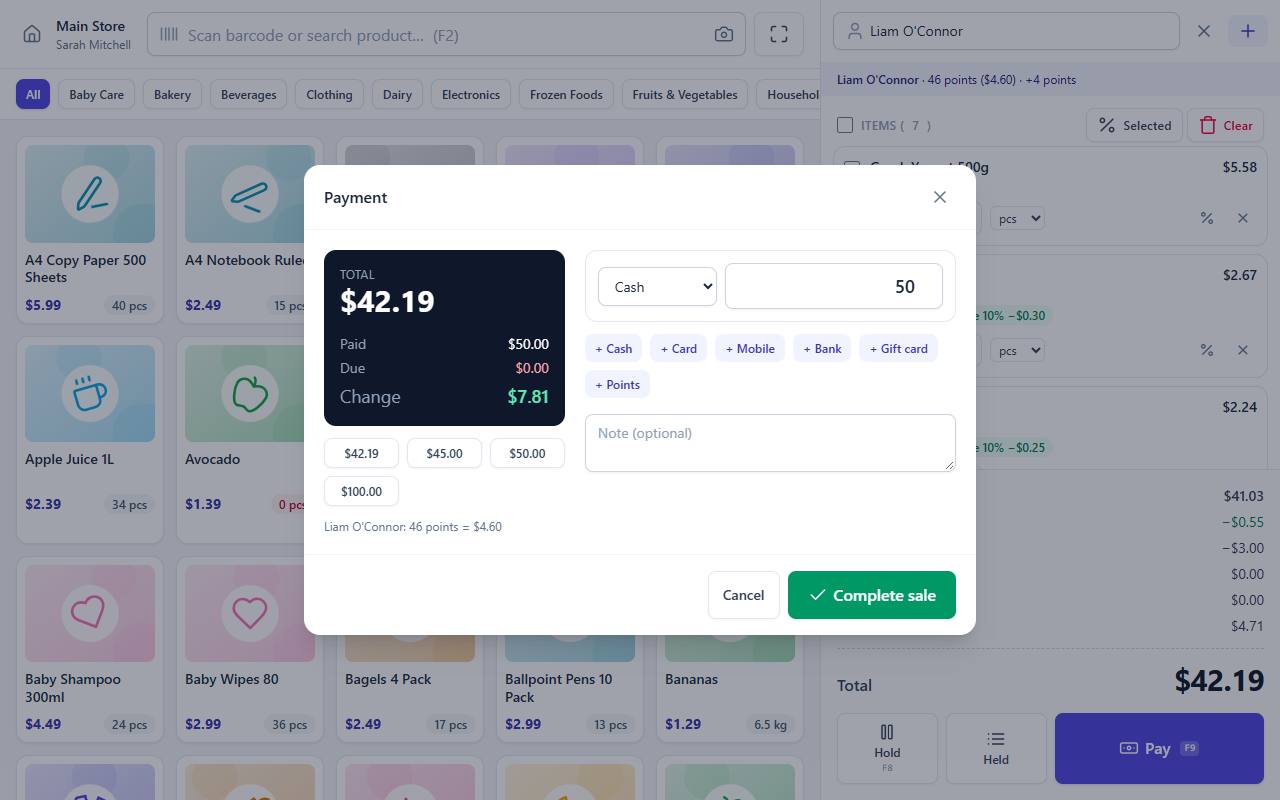
Take payment
- Check the cart, then click Pay or press F9. The Pay button is disabled while the cart is empty.
- The Payment window opens with one Cash row already filled with the total.
- Take the payment as described below.
- Optionally write a Note (for example "gift wrap").
- Click Complete sale (or press F9 again).
On the left of the window you see the Total, how much is Paid, what is still Due, and the Change to give back. They update as you type.
Pay with cash and quick-cash buttons
The cash amount starts equal to the total. Type the amount the customer hands you, or click a quick-cash button. The buttons show the exact total and the total rounded up to the next 5, 10, 50 and 100. Change shows what you must give back.
Pay by card, mobile money or bank transfer
- Change the method of the row to Card, Mobile or Bank (or click + Card, + Mobile, + Bank to add a row).
- Enter the amount.
- Type the terminal slip or transaction number in Ref / Txn ID (optional but useful for reconciliation).
Warning: Only cash can give change. If a card, mobile or bank payment is more than the total, the sale is refused with "Payment is more than the total. Only cash can give change."
Split payment
You can pay one sale with several methods, for example part cash and part card.
- Enter the cash the customer gives, for example 20.00.
- Click + Card (or another method). The new row is filled with the remaining amount.
- Adjust the amounts if needed. Due must reach 0 (or you sell on credit, below).
Use ✕ on a row to remove it. Rows with an amount of 0 are ignored.
Pay with a gift card
- Add a Gift card row (click + Gift card).
- Type or scan the card code in the GIFT-CODE box and leave the box. The card balance appears (Balance: 25.00), or "Gift card not found".
- Enter the amount to take from the card. It cannot be more than the balance.
If the card cannot be used (expired, disabled or empty) the sale is refused. The balance is reduced when you complete the sale. Gift cards are created under Marketing → Gift cards.
Pay with loyalty points
The + Points button only appears when loyalty is on and a customer is selected.
- Click + Points.
- Type the number of points to use. The money value is shown under the box.
- Pay the rest with another method.
The number of points must be at least the minimum to redeem and not more than the customer has. These limits are set in Settings → Loyalty.
Sell on credit (customer owes the rest)
- Select a customer first (F4).
- In the Payment window pay less than the total, or set the amount to 0 for a fully unpaid sale.
- Due shows the unpaid part. Click Complete sale.
The invoice is marked Partial or Due and the amount is added to the customer's dues. Without a customer the sale is refused: "Select a customer to sell on credit". You can collect the money later, see Add a payment to a sale with a balance due.
Complete the sale and print the receipt
After Complete sale the cart is cleared and a success window opens.

It shows the invoice number, the Change to give back, and, if relevant, Due and the points earned.
- Click Print to print the receipt. The browser print window opens; choose your receipt printer.
- Type an address in Email the receipt to… and click Email to send the receipt as a PDF. If the customer has an email address, it is already filled in. See Email the receipt from the POS.
- Click Print prep ticket to print the kitchen ticket. This button only appears when kitchen tickets are on and the sale contains an item from a marked category.
- Click New sale to go back to the search box and start the next customer.
If a customer display is open, it shows the total, the change and a thank-you message.
Print the receipt automatically
To print without clicking, turn on Settings → Sales & receipts → Print receipt automatically after each sale. The paper size (58 mm, 80 mm or A4), header, footer and what is shown on the receipt are also set there. You can reprint any receipt later from the Sales list.
Hold a sale and resume it
Use Hold when a customer leaves for a moment (forgot their wallet, wants to get one more item) and you need to serve the next person.
Hold the current sale
- Click Hold or press F8. The cart must not be empty.
- The sale is saved with the customer's name (or the current time) as its label and the cart is cleared. A message says "Sale held".
Resume a held sale
- Click Held (the badge shows how many you have). The window lists every held sale with its label, number of lines, how long ago it was held, and the total.
- Click Select next to the sale you want. The items, discounts, coupon and customer come back and prices are recalculated.
- Continue and take payment as usual. When the sale is completed, the held entry is removed.
Click ✕ to throw a held sale away.
Warning: Resuming replaces whatever is in the cart now. Hold the current sale first if you do not want to lose it.
Note: Held sales belong to the cashier and the branch that created them. Stock is not reserved while a sale is held.
Send an order to the kitchen
When kitchen tickets are turned on, click Kitchen in the top bar to print a prep ticket for the current cart before payment, for example for a table order. Only items from categories marked Print prep ticket are printed, with their notes and without prices. Then hold the sale or take payment as usual.
When the connection drops
If the connection to the server is lost, a yellow bar appears at the top of the POS and you can keep selling with cash or card. The receipt gets a temporary number (OFF-…) and the sale is sent to the server when the connection is back. Coupons, gift cards, points, held sales, new customers, kitchen tickets and email receipts are not available offline.
Offline mode only works if the POS was opened once while online in that browser. Read Offline mode before you rely on it.
Clear the cart
Click Clear above the cart, then Yes, continue. This removes all lines, the customer, the order discount and the coupon.
Keyboard shortcuts
| Key | What it does |
|---|---|
| F2 | Jump to the product search / scan box |
| F4 | Jump to the customer box |
| F8 | Hold the current sale |
| F9 | Open the payment window; press it again inside the window to complete the sale |
| Ctrl+K | Global search (works on every page that has the top bar; the POS screen itself has no top bar, so use F2 and F4 there) |
| Esc | Close the open window or suggestion list |
| ↑ ↓ Enter | Move through and choose search suggestions |
Troubleshooting
- The Pay button is grey. The cart is empty, or the current branch is a warehouse.
- A scanned product is not added. The barcode or SKU does not exist, or the product is inactive. Check it on the Products page.
- "Not enough stock for ...". Receive a purchase or adjust stock, or allow negative stock in settings.
- Prices look wrong. Check the product price, its unit and the active promotions. The POS only shows what the server calculates.
- A yellow bar says the POS is offline. The connection to the server is lost. See Offline mode.
- "Not available offline". Coupons, gift cards, points, holding sales, new customers, kitchen tickets and email need the connection. Wait until it is back.