Coupons, gift cards, promotions and loyalty
The Marketing group in the sidebar has four tools that bring customers back and reward them:
| Tool | In one sentence |
|---|---|
| Coupons | A code the cashier types in the POS to take a discount off the whole sale. |
| Gift cards | A prepaid card with a balance that a customer spends as a payment method. |
| Promotions | Automatic discounts when a customer buys enough of certain products or categories. |
| Loyalty points | Points customers earn on every sale and spend as money later. |
You see each item only if your role has the matching permission (coupons.view, gift_cards.view, promotions.view, loyalty.view).
Coupons

A coupon is a code such as SAVE10. The cashier enters it in the POS and the discount is taken off the sale.
Create a coupon
- Click Coupons in the sidebar, then Add Coupon.
- Fill in the form.
- Click Save.

| Field | What it does |
|---|---|
| Code | The code the customer gives to the cashier. A random 8-letter code is suggested. You can type your own (letters, numbers, dashes and underscores). It is always saved in capitals and must be unique. |
| Type | Percentage (%) or Fixed amount. |
| Value | The percentage (for example 10) or the amount (for example 5.00). Must be above zero. |
| Minimum order amount | The coupon only works when the order total (after item discounts) reaches this amount. 0 = no minimum. |
| Maximum discount | A ceiling on the discount. Useful for percentage coupons: "20% off, up to 30". Empty = no limit. |
| Total usage limit | How many times the coupon can be used in total. Empty = unlimited. |
| Uses per customer | How many times one customer can use it. The cashier must choose a customer in the POS for this to work. Empty = unlimited. |
| Starts on / Ends on | The first and last day the coupon works. Both are optional. The end date is included. |
| Active | Untick to switch the coupon off without deleting it. |
The list shows the code, the discount, the minimum order, how many times it was Used (for example 4 / 100), the validity dates and the status.
Use a coupon in the POS
- Add products to the cart.
- Click Coupon in the totals area of the cart.
- Type the code and click Apply.
- The discount appears on the Coupon line. Click Remove to take it off.
How the discount is calculated: the coupon works on what is left after promotions, line discounts and the order discount. The tax is then calculated on the reduced amount.
If the code cannot be used, the POS tells you why: the code is not valid, not active yet, expired, the usage limit is reached, the minimum order is not reached, a customer must be selected, or this customer already used it.
The "used" counter goes up when the sale is completed. If you void that sale, the counter goes down again.
Tip: Create one coupon per campaign (for example
SUMMER20) so the Used column tells you how well each campaign worked. The Marketing report shows coupon usage by period too.
Gift cards
A gift card is a prepaid balance with a code. The customer buys it (or receives it) and later pays with it at the POS.
Issue a gift card
- Click Gift cards, then Add Gift card.
- Fill in the form:
- Card code: suggested automatically as
GC-followed by 8 random characters. You can change it before saving. - Value: the amount loaded on the card (at least 1).
- Customer (optional): link the card to a customer so it shows on their page.
- Expires on: optional end date.
- Note: optional.
- Active: untick to block the card.
- Card code: suggested automatically as
- Click Save.
The balance starts equal to the value, and an Issue transaction is recorded. The value cannot be changed after the card is issued.
Note: Issuing a gift card does not record a sale or a payment. Take the customer's money with your normal process (or record it outside the app) and issue the card.
See a card and its history
Click the code in the list. The card page shows a preview of the card with the business name, the current balance, the code, the expiry date and a QR code of the code. On the right, Transactions lists every movement:
- Issue: the starting value.
- Redeem: money spent at the POS, with a minus sign.
- Refund: money put back when a sale paid with the card is voided.

Print the card
Open the card and click Print card. Only the card is printed. Use your browser print dialog to print on paper or card stock, or to save a PDF.
Pay with a gift card in the POS
- In the payment window, click Gift card in the list of methods.
- Type or scan the card code. The balance appears next to the box.
- Enter the amount to take from the card. It cannot be more than the balance.
- Add other methods for the rest if needed (for example cash), then click Complete sale.
A card is usable only when it is Active, has a balance above zero and has not expired. Otherwise the POS says "Gift card not found or not usable." The list shows Active or Inactive accordingly. Gift card payments cannot give change.
Promotions (multi-item discounts)
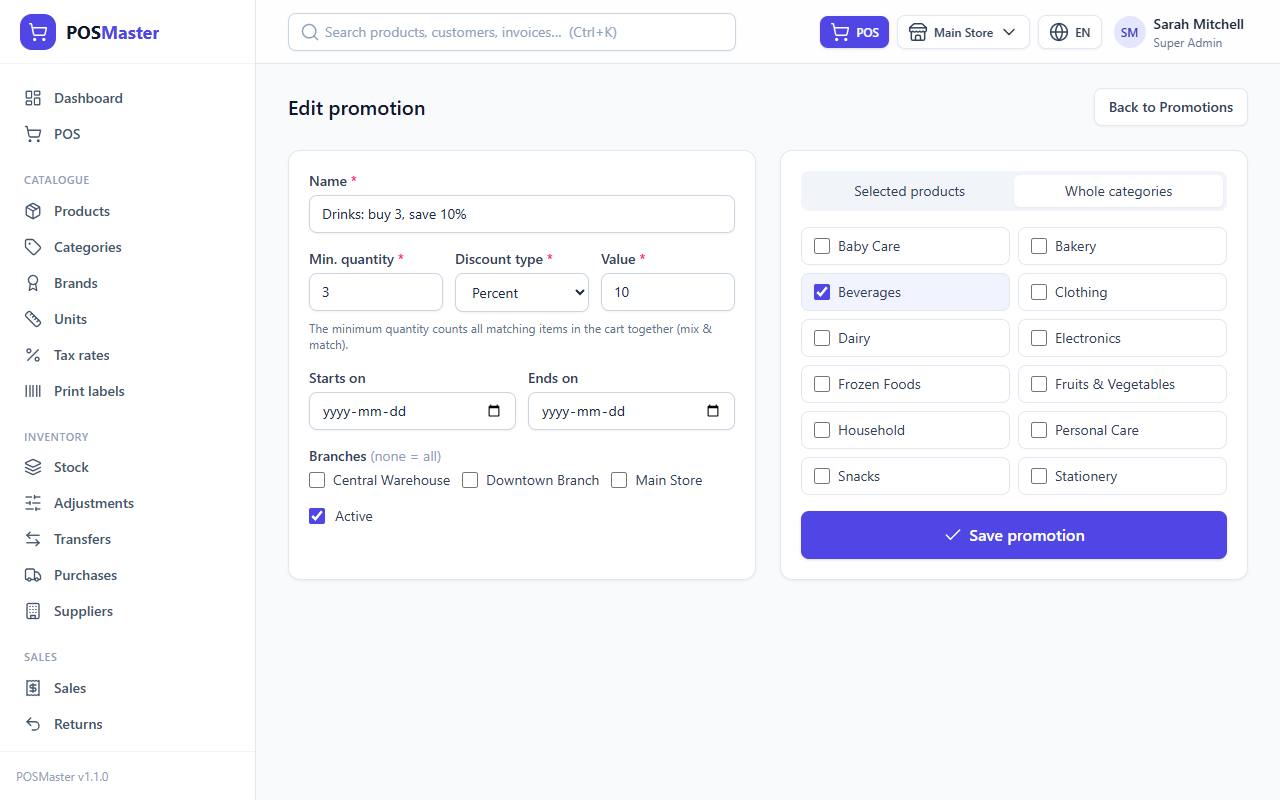
A promotion gives an automatic discount when the customer buys enough of the chosen products or categories. The cashier does not type anything: the POS applies it as soon as the cart qualifies and shows it on the Promotions line.
Create a promotion
- Click Promotions, then Add promotion.
- Fill in the left card:
- Name, for example "Buy 3 drinks, get 10% off".
- Min. quantity: how many items must be in the cart.
- Discount type: Percent or Amount per unit.
- Value: the percentage or the amount taken off each unit.
- Starts on and Ends on: optional dates.
- Branches: tick the branches where it applies. Leave all unticked for every branch.
- Active.
- On the right card, choose what it applies to:
- Selected products: search and add products one by one.
- Whole categories: tick one or more categories.
- Click Save promotion.
How a promotion is calculated
- The minimum quantity counts across all lines. Every cart line that matches the promotion is added together (mix and match). If the promotion covers a whole category, a Cola and a Juice from that category count toward the same total.
- Quantities are counted in the product's base unit. For example, one box of 12 counts as 12 pieces.
- When the total reaches the minimum, every matching line gets the discount, not only the extra items.
- Percent takes that percentage off the line amount. Amount per unit takes that amount off each unit sold, and never more than the line itself.
- If several promotions match one line, only the best one (the biggest discount) is used. They do not stack.
- Manual line discounts are applied on top of what is left after promotions.
- A promotion only works when it is active, today is inside its dates and the current branch is allowed.
- The server checks the promotions again at checkout. Nothing is trusted from the browser.
Worked example
Promotion: Buy 3 drinks, get 10% off. Applies to the category Drinks. Min. quantity 3. Type Percent, value 10.
| Cart | Qty | Price | Line |
|---|---|---|---|
| Cola | 2 | 1.50 | 3.00 |
| Orange juice | 1 | 2.00 | 2.00 |
| Drinks total | 3 | 5.00 |
Three drinks are in the cart, so the promotion applies to both lines: Cola loses 0.30, Orange juice loses 0.20. The Promotions line shows -0.50.
With only two drinks in the cart there is no discount. The same promotion as Amount per unit with value 0.50 would take 0.50 off each of the 3 units, a total of 1.50.
The promotions list shows each rule as "Buy N or more → X off", what it applies to, the validity and the status (Active or Expired). You can edit or delete a promotion from the list. Delete is hidden in demo mode.
Loyalty points

Loyalty points reward regular customers. They are earned on sales and spent as a payment method.
Set up loyalty
Go to Settings → Loyalty (or click Loyalty settings on the loyalty page). See the full Settings guide.
| Setting | Meaning |
|---|---|
| Enable loyalty points | Turns the whole system on or off. |
| Spend this amount… | The money amount that earns points, for example 10. |
| …to earn this many points | How many points that amount earns, for example 1. |
| Value of 1 point | What one point is worth when spent, for example 0.10. |
| Minimum points to redeem | A customer must spend at least this many points at once, for example 50. |
With the example values: every 10 spent earns 1 point, and 1 point is worth 0.10. That is a 1% reward.
How points are earned
- Points are earned when a sale is completed and a customer is selected. Walk-in sales earn nothing.
- The points are based on the amount the customer really paid: the sale total minus the value of any points they spent in the same sale.
- Only complete blocks count. A sale of 87.50 with "1 point per 10" earns 8 points (the remaining 7.50 is ignored).
- The points appear in the customer's Points history and on the POS receipt screen as "+8 points".
Spend points in the POS
- Select the customer. Their points and value show under the customer box.
- In the payment window, click Points. This button only shows when a customer is selected and loyalty is on.
- Enter the number of points to use. The money value is shown ("= 10.00").
- Complete the sale.
The customer must have enough points and must use at least the Minimum points to redeem in one go. Example: a customer with 120 points who spends 100 points pays 10.00 of the bill with points. The customer then earns new points only on the rest of the bill.
Points are reversed when sales are cancelled
- Return: the points earned on the sale are removed in proportion to the value returned (a full return removes all, half a return removes half). The balance never goes below zero.
- Void: the points earned are removed and the points the customer spent are given back.
The loyalty page
Open Marketing → Loyalty points. The tiles show Outstanding points (all customers together, with their money value), Points earned and Points redeemed. The list Customers with points has a search box. Recent activity shows the latest movements.
Adjust a customer's points by hand
If you have loyalty.adjust, each row of the list has a small form:
- Type the points in the +/- box. Use a positive number to add (for example
50) and a negative number to remove (for example-20). - Click Save.
The change is recorded as an "adjust" movement. A deduction can never take the balance below zero.
Tip: Use manual adjustment for a birthday gift, a welcome bonus or to fix a mistake. Only customers who already have points are listed on this page, so a customer with zero points appears after their first sale earns some.