Customers
Customers are the people who buy from you. You do not need a customer for every sale: a sale without a customer is a walk-in customer sale. But adding customers lets you track what they spend, what they owe, their loyalty points and their gift cards.
Open Sales → Customers in the sidebar.
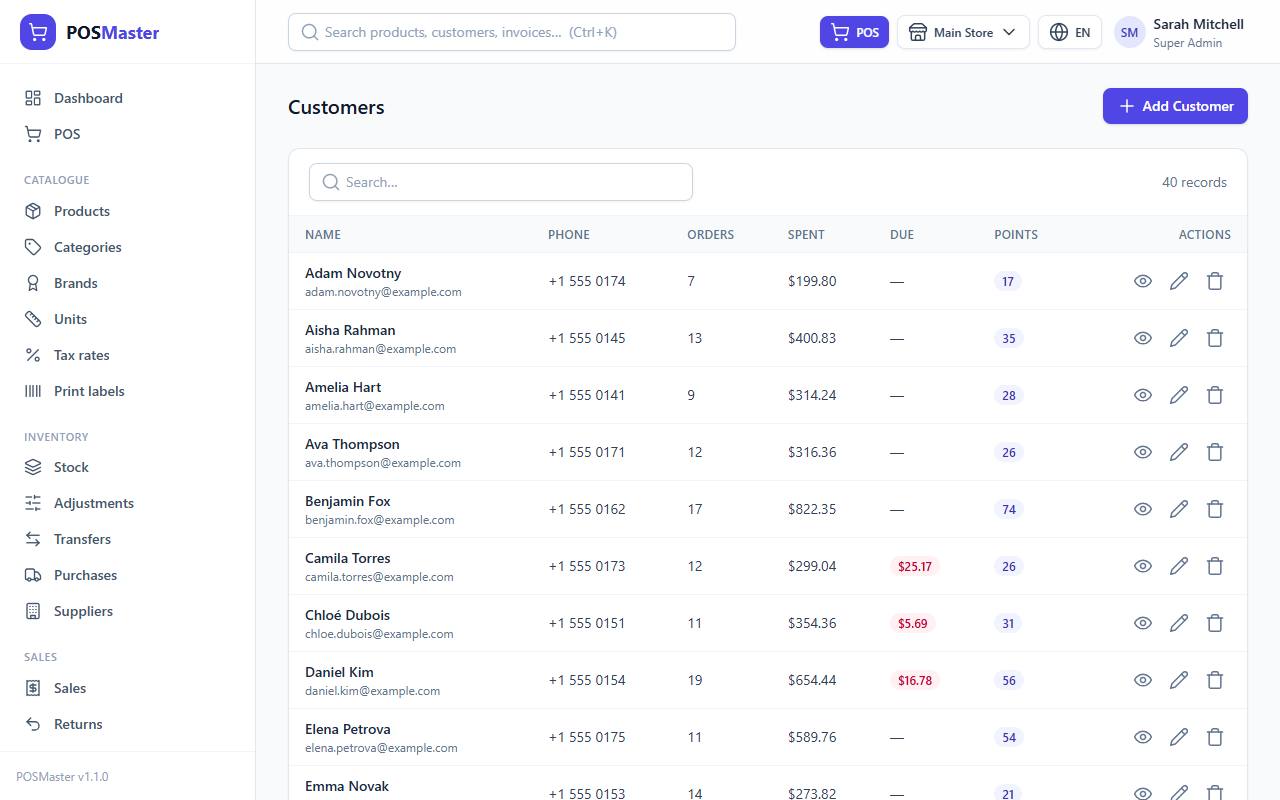
The customers list
The table shows one row per customer:
| Column | What it shows |
|---|---|
| Name | Name and email. Click to open the customer page. |
| Phone | Phone number. |
| Orders | Number of sales. |
| Spent | Total of the customer's sales (voided sales are not counted). |
| Due | Amount still unpaid, in red when above zero. |
| Points | Current loyalty points. |
Use the search box to find a customer by name, phone or email. The number of records is shown at the top of the table.
Add a customer
- Click Add Customer.
- Fill in the form:
- Name (required)
- Phone
- Tax number (for business customers)
- Address
- Click Save.
You need the permission customers.create.
Edit a customer
- In the list, click the pencil icon, or open the customer page and click Edit.
- Change the fields and click Save.
You need customers.edit.
Delete a customer
Click the trash icon in the list and confirm. Past sales keep the customer's name, so your history stays correct. You need customers.delete. In demo mode the delete buttons are hidden and the server refuses the request.
The customer page
Click a customer's name, or the eye icon, to open the customer page.
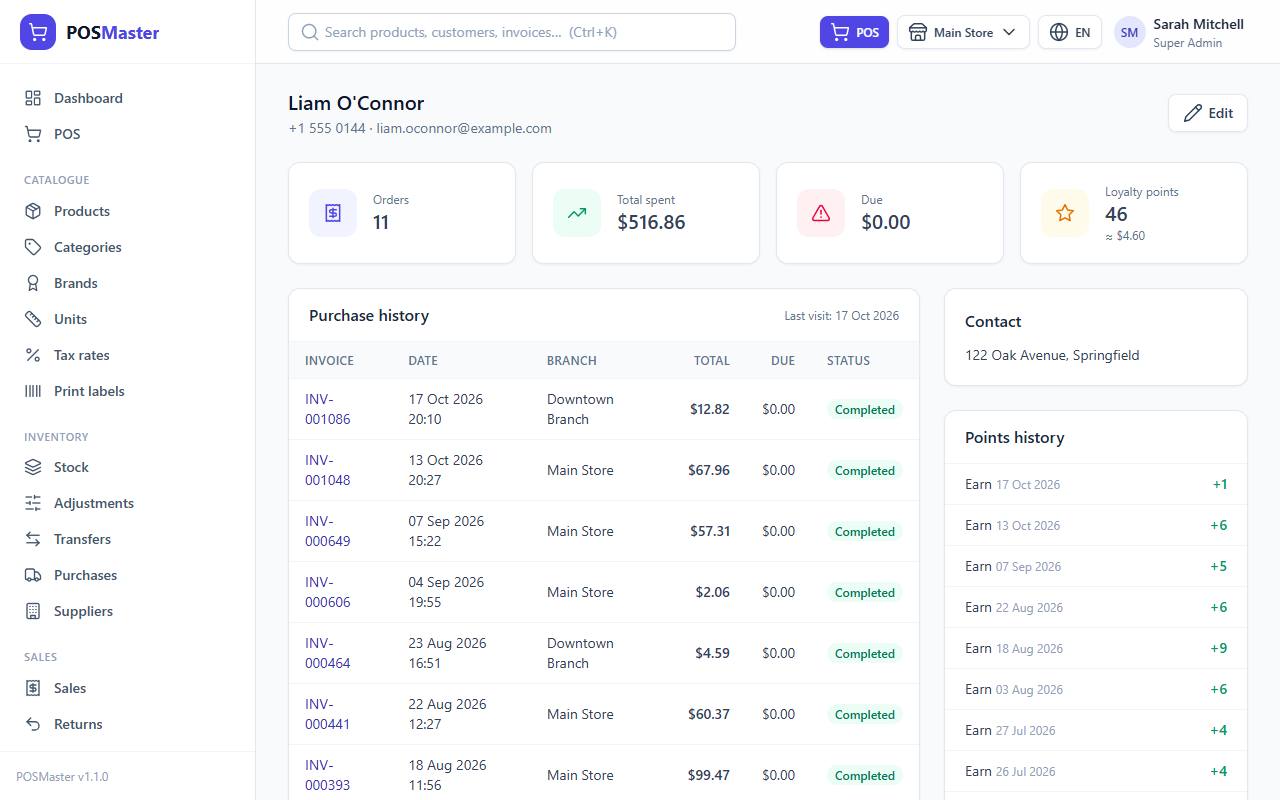
At the top you see four tiles:
- Orders: number of sales that are not voided.
- Total spent: sum of those sales.
- Due: what the customer still owes.
- Loyalty points: points balance and its approximate money value.
Below you find:
- Purchase history: every sale with invoice number, date, branch, total, due and status, 10 per page. Click an invoice to open the sale. The header shows the Last visit date.
- Contact: address and tax number.
- Points history: the last 10 movements (earned, redeemed, reversed, adjusted) with plus or minus values.
- Gift cards: gift cards linked to this customer, with their balance. This box only appears if the customer has at least one card.
Tip: To collect a payment on an unpaid sale, open the invoice from the purchase history and add a payment there.
Add a customer from the POS (quick add)
You do not have to leave the register to add a new customer.
- In the POS, click the customer box at the top of the cart (or press F4) and search. If the customer does not exist yet, click the + button next to the box.
- In the New customer window, type the Name. Phone and Email are optional.
- Click Save customer.
The new customer is selected for the current sale. The + button only appears if you have customers.create. To pick an existing customer, type part of the name, phone or email and click the result. Use the x button to remove the customer again.
Walk-in customers
If you leave the customer box empty, the sale is saved without a customer and shows as Walk-in customer on receipts, in the sales list and in reports. A walk-in sale:
- does not earn or use loyalty points,
- cannot use a coupon that has a "Uses per customer" limit (the POS asks you to select a customer),
- must be paid in full. To leave a balance due, you must choose a customer, so the debt is linked to someone.
Permissions
customers.view, customers.create, customers.edit and customers.delete. A cashier normally has view and create so they can add customers from the POS.