Reports
Reports turn your sales, purchases, stock and expenses into charts and tables. There are 14 reports. They all work the same way, so once you know one, you know them all.
Open Finance → Reports. You need the permission reports.view.
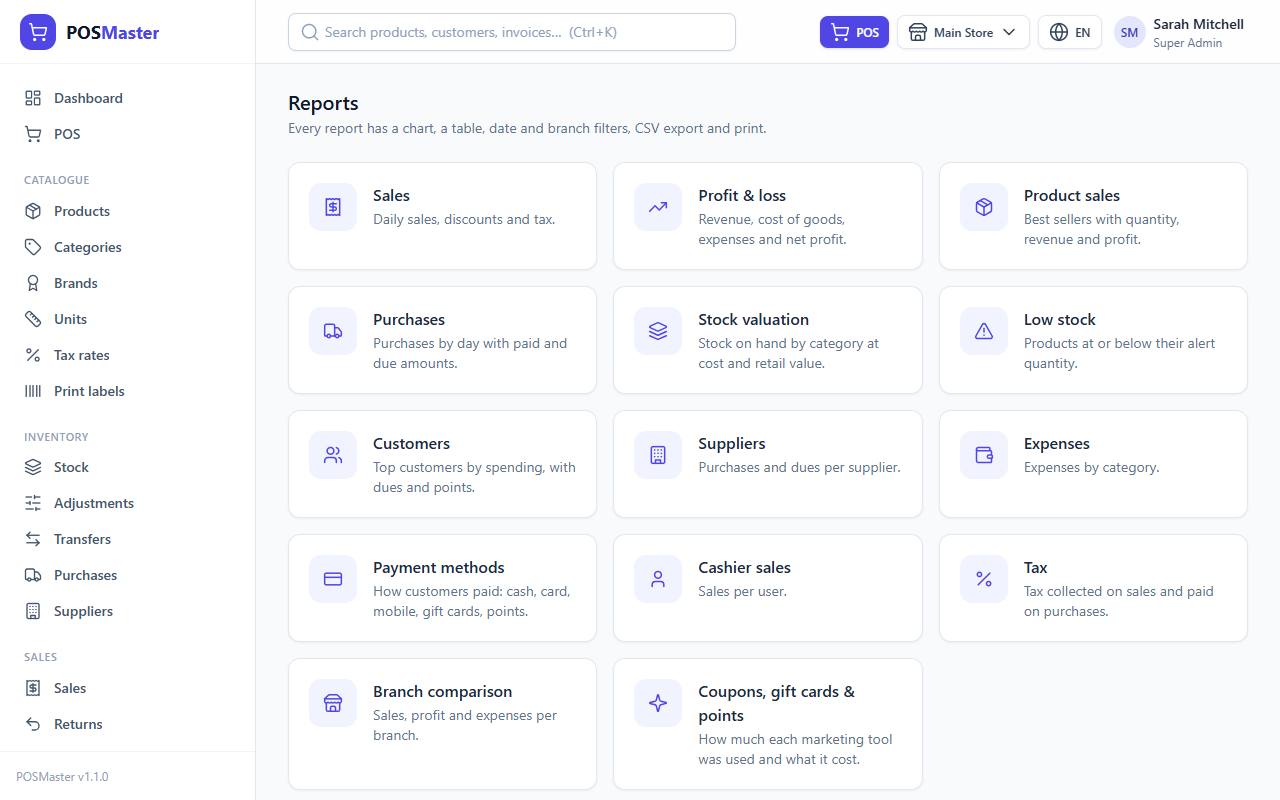
The home page shows one card per report with a short description. Click a card to open the report.
How every report page works

Choose the period
At the top of the page you see From and To dates. By default a report shows the last 30 days. You can:
- Type or pick two dates and click Apply.
- Click a quick button: Today, 7 days, 30 days, This month, 90 days or This year. The report reloads at once.
The current period is kept in the page address (?from=…&to=…), so you can bookmark a report or share the link with a colleague who has access.
Two reports, Stock valuation and Low stock, show stock as it is now. They hide the date boxes because dates do not apply.
Choose the branch
The Branch list contains All branches and the branches you may access. With All branches the report adds up every branch you have access to. If you only work in one branch, you only see that branch's numbers. See Branches and warehouses.
Read the chart and the table
- The chart at the top summarises the report (a line, bars or a doughnut, depending on the report). Hover a point or a bar to see the exact value.
- The table below has the detail. The last row shows the totals. Money columns follow your currency settings.
- Voided sales are never counted in any report.
Export to CSV
Click CSV to download the table (with its totals row) as a .csv file. It opens in Excel, LibreOffice or Google Sheets, and accents and Arabic text display correctly. The file name contains the report name and today's date. The export uses the same period and branch you have on screen.
Click Print to print the chart and table, or save them as a PDF from your browser's print dialog. The filter bar and buttons are not printed.
The 14 reports
Sales
Daily sales, discounts and tax. One row per day in the period, newest first, including days without sales.
Columns: Date, Invoices (number of sales), Subtotal (before discounts), Discounts (item discounts, promotions, order discount and coupons together), Tax, Total, Paid and Due. The chart is a line of daily Sales and Paid.
Use it to see your busiest days and how much money is still owed. The Sales report shows sales at their full value; for money given back through returns, see Profit & loss.
Profit & loss
Revenue, cost of goods, expenses and net profit. This is the most useful report for the owner.
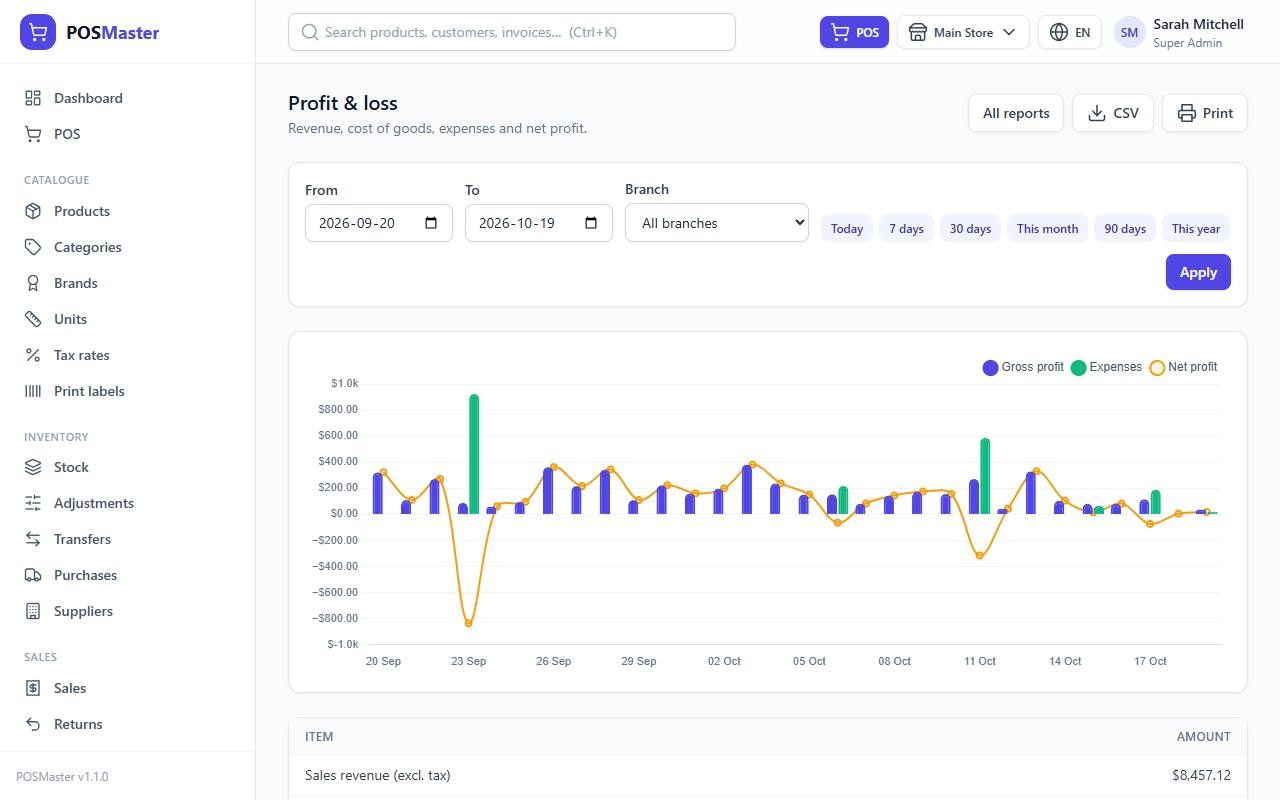
It is a short statement with these lines:
| Line | How it is calculated |
|---|---|
| Sales revenue (excl. tax) | The total of all sold items minus their tax. |
| Returns | Revenue given back through sale returns in the period (shown negative), also without tax. |
| Cost of goods sold | The cost price saved on each sold item at the time of sale, times the quantity, minus the cost of returned items. |
| Gross profit | Revenue - returns - cost of goods sold. |
| Expenses | All expenses dated in the period (negative). |
| Net profit | Gross profit - expenses. |
The chart shows gross profit and expenses as bars per day, and net profit as a line.
Note: The cost used is the cost price the product had when it was sold, so changing a product's cost later does not rewrite past profit.
Product sales
Best sellers with quantity, revenue and profit. One row per product (variants have their own name), sorted by revenue, up to 300 rows.
Columns: Product, SKU, Qty sold (in the product's base unit), Revenue (including tax), Profit (revenue - tax - cost). The chart shows the top 10 by revenue and profit.
Purchases
Purchases by day with paid and due amounts. Lists each purchase in the period with Reference, Date, Supplier, Status, Total, Returned, Paid and Due (up to 500 rows). The chart shows the purchase total per day.
Returned is the value of the goods sent back to the supplier from that purchase (see Supplier returns). Total stays the original purchase value; Due is what is left after payments and returns, and Paid already has any supplier refunds taken off.
Stock valuation
Stock on hand by category at cost and retail value. One row per category with the number of Products, Qty on hand, Cost value (quantity x cost price), Retail value (quantity x sale price) and Potential profit (retail - cost). The doughnut chart shows each category's share of the cost value. Uses the stock of the selected branches right now.
Low stock
Products at or below their alert quantity. Lists every active product (and variant) whose stock in a branch is at or below the alert quantity you set on the product. Columns: Product, SKU, Branch, In stock, Alert at and Suggested reorder, which is simply twice the alert quantity minus what you have. The list is per branch, so a product can appear once for each branch that is running low.
Customers
Top customers by spending, with dues and points. One row per customer who bought in the period: Orders, Total spent, Average order, Due and current Points. The last row also shows the total of Walk-in customer sales, which have no customer. Up to 300 customers, sorted by spending.
Suppliers
Purchases and dues per supplier. One row per supplier with the number of Purchases, Total, Returned, Paid and Due in the period. Returned is the value of goods you sent back to that supplier from those purchases. The stacked bar chart shows paid and due for the top 10 suppliers. Use it to see whom you still have to pay.
Expenses
Expenses by category. One row per expense category with Entries, Amount and Share of the total. The doughnut chart shows the same split.
Payment methods
How customers paid: cash, card, mobile, gift cards, points. One row per method with the number of Payments and the Amount. The amounts are the money really received. Change given back to the customer is already taken off the cash amount. Use it to reconcile your cash drawer, card terminal and mobile wallet.
Cashier sales
Sales per user. One row per user who made sales: Invoices, Sales (total), Discounts given (item discounts, order discounts and coupons) and Average sale. A high discount figure for one cashier is worth a conversation.
Tax
Tax collected on sales and paid on purchases. One row per tax rate: Taxable sales (sales without tax), Collected (tax charged to customers), Paid (tax on your purchases) and Net payable (collected - paid). Use it when you prepare your tax return.
Branch comparison
Sales, profit and expenses per branch. One row per branch with Invoices, Sales, Gross profit, Expenses and Net profit. The bar chart puts the branches side by side. Warehouses appear too, usually with zeros.
Coupons, gift cards & points
How much each marketing tool was used and what it cost. One row for each coupon code used (number of uses and the discount given), one row for all Promotions (sales that got a promotion and the discount amount), one for Gift cards redeemed and one for Loyalty points redeemed. The doughnut chart splits the amounts by tool. Read more in Coupons, gift cards, promotions and loyalty.
Tips for using reports well
- Start your week with Sales (last 7 days) and Low stock.
- At month end open Profit & loss with This month and the Tax report.
- Compare shops with Branch comparison, then open each branch's own reports for detail.
- If a number looks wrong, check the branch filter and the dates first.