Stock, adjustments and transfers
POSMaster keeps one stock figure for every product variant in every branch. Every change is written in a ledger, so you can always see what happened and who did it. The Inventory group in the left menu has Stock, Adjustments, Transfers, Purchases and Suppliers.
Note: Stock only changes through sales, returns, voids, purchases, adjustments, transfers and opening stock. There is no way to type a new number over the old one, which keeps the history trustworthy.
What "base unit" means
A product can be sold in several units (pieces, packs, boxes). Stock is always kept in the base unit, for example pieces. If a box holds 12 pieces and you have 5 boxes, the stock page shows 60 pieces.
On adjustment and transfer forms, quantities are always in the base unit ("Quantities are in the base unit"). To adjust 2 boxes of a Box (12) product type 24. Units are explained in Categories, brands, units and taxes.
See stock in each branch
Go to Inventory → Stock.

At the top two tiles show Stock value (cost) and Stock value (retail) for the rows you are looking at (so filtering by a category gives the value of that category). The table shows each variant with its cost, price, Alert at level, In stock quantity and Value (quantity × cost).
Use the filters on top:
- Search by name, SKU or barcode.
- Branch - choose any branch you have access to. The page opens on your current branch.
- Category.
- All levels / Low stock / Out of stock. Low means more than 0 but at or below the product's alert level, Out means 0 or less.
Click Filter to apply. A badge is green (healthy), yellow (low) or red (out). Click a product name to open its page.
Tip: The Low / out of stock tile on the dashboard links straight to the low stock view.
The stock movement ledger
Click Movements on the Stock page (or Inventory → Stock → Movements) to see every change.
Each row shows the date, product, branch, Type, quantity (green plus or red minus), the Balance after the change, who did it and a note. Filter by branch, type and date range. The types are:
| Type | Created by |
|---|---|
| Sale | Completing a sale at the POS (stock goes down) |
| Return | Returning items from a sale (stock comes back) |
| Void | Voiding a sale (stock comes back) |
| Purchase | Receiving a purchase (stock goes up) |
| Purchase return | Sending goods back to the supplier (stock goes down). See Supplier returns. |
| Adjustment | A stock adjustment (up or down) |
| Transfer out / Transfer in | Moving stock between branches |
| Opening | Opening stock entered when a product is created |
The product page also shows the last 15 movements of that product, with View all to open the full ledger for it.
Adjust stock
Use an adjustment when the real count is different from the system: damaged or expired goods, theft, a recount, or goods you found. You need the stock.adjust permission.
- Go to Inventory → Adjustments and click New adjustment, or click Adjust on the Stock page.
- In the search box type a name, SKU or barcode (or scan) and pick the product. Its current Stock is shown under its name.
- For each line choose + Add or − Subtract and type the Qty in the base unit.
- Set the Date and choose a Reason: Damaged, Expired, Lost, Found, Correction or Opening.
- Optionally write a Note.
- Click Save adjustment.
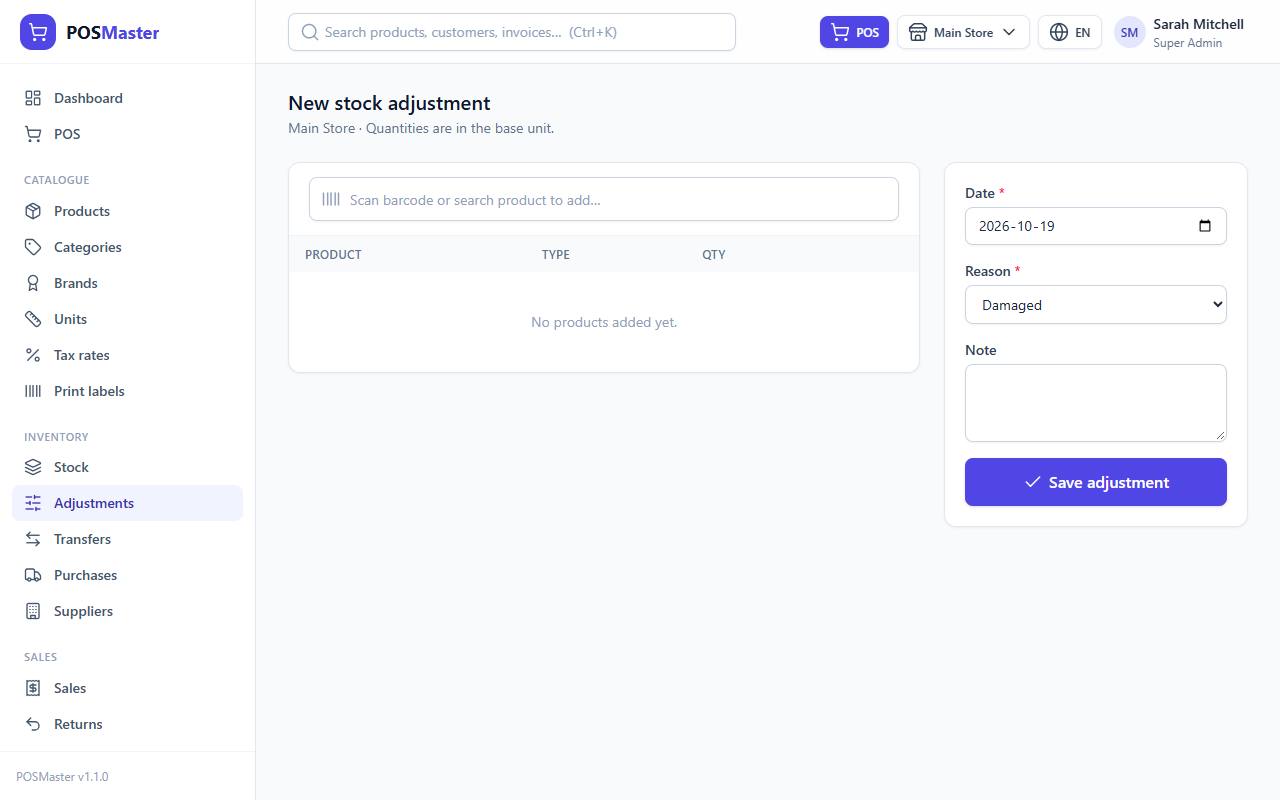
The adjustment is saved with a reference number and the stock of the current branch changes immediately. Each line appears in the ledger as an Adjustment with the reason as note.
Warning: You cannot subtract more than what is in stock. The form shows "Not enough stock for ..." unless negative stock is allowed in Settings → Sales & receipts.
Note: Adjustments cannot be edited or deleted. If you made a mistake, make another adjustment in the opposite direction.
The reasons list comes from the system configuration (adjustment_reasons in config/pos.php).
Transfer stock between branches
Use a transfer to move goods, for example from the warehouse to a store. You need the stock.transfer permission.
- Go to Inventory → Transfers and click New transfer, or click Transfer on the Stock page.
- Pick From branch (it starts as your current branch and lists only branches you can access) and To branch (any active branch; it must be a different one).
- Add products with the search box and type the Qty in the base unit for each.
- Set the Date and an optional Note.
- Click Transfer stock.
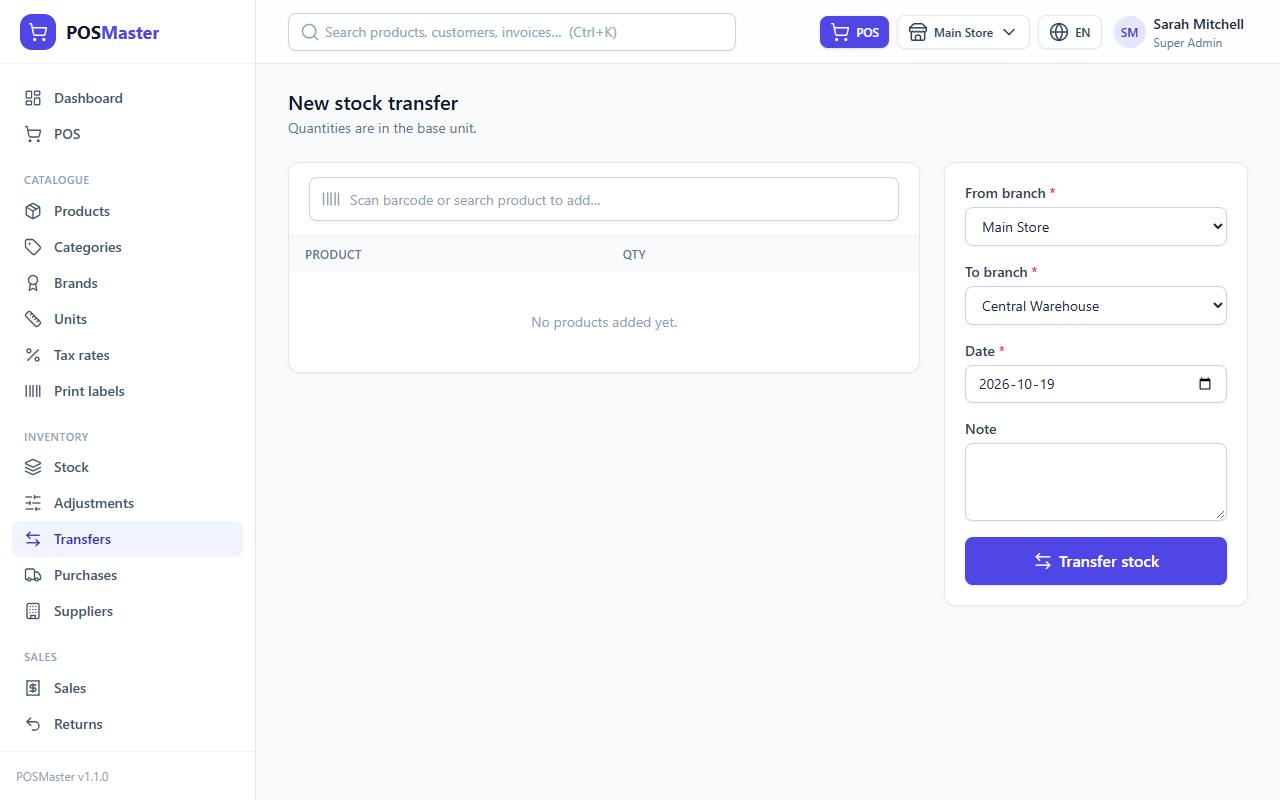
The transfer takes effect at once: the "from" branch goes down (Transfer out) and the "to" branch goes up (Transfer in), in one step. The from-branch cannot go below zero, unless negative stock is allowed.
Tip: The usual routine is: receive a big purchase into the warehouse, then transfer what each store needs. Stores sell from the stock in their own branch. A warehouse cannot sell at the POS.
Each transfer has a reference number and a details page that shows the products moved.