Branches and warehouses
A branch is a place where you keep stock or make sales: a shop, a market stall or a warehouse. POSMaster handles any number of branches in one installation. A single shop simply uses the one branch that comes with the app, Main Store.
Open Administration → Branches in the sidebar. You need the permission branches.view. By default only Super Admin and Admin have it.
Store or warehouse
| Type | Use it for | Can it sell in the POS? |
|---|---|---|
| Store | A shop or counter where customers buy. | Yes |
| Warehouse | A back room or depot that only holds stock. | No |
In a warehouse you can still receive purchases, adjust stock and transfer stock to a store. But if you open the POS while a warehouse is the active branch, you see a yellow message ("… is a warehouse. Switch to a store branch to sell.") and the Pay button stays disabled. The server also refuses a sale from a warehouse.
Add a branch
- Click Add Branch.
- Fill in the form:
- Name (required), for example "Downtown Branch".
- Code (required): a short unique code with letters, numbers, dashes or underscores, such as
DTN. - Phone and Email: printed on that branch's receipts.
- Address: also printed on receipts and quotations. If you leave it empty, the business address from Settings → Business is used.
- This is a warehouse (stock only, no POS sales): tick it for a warehouse.
- Active: untick to close a branch without deleting anything.
- Click Save.
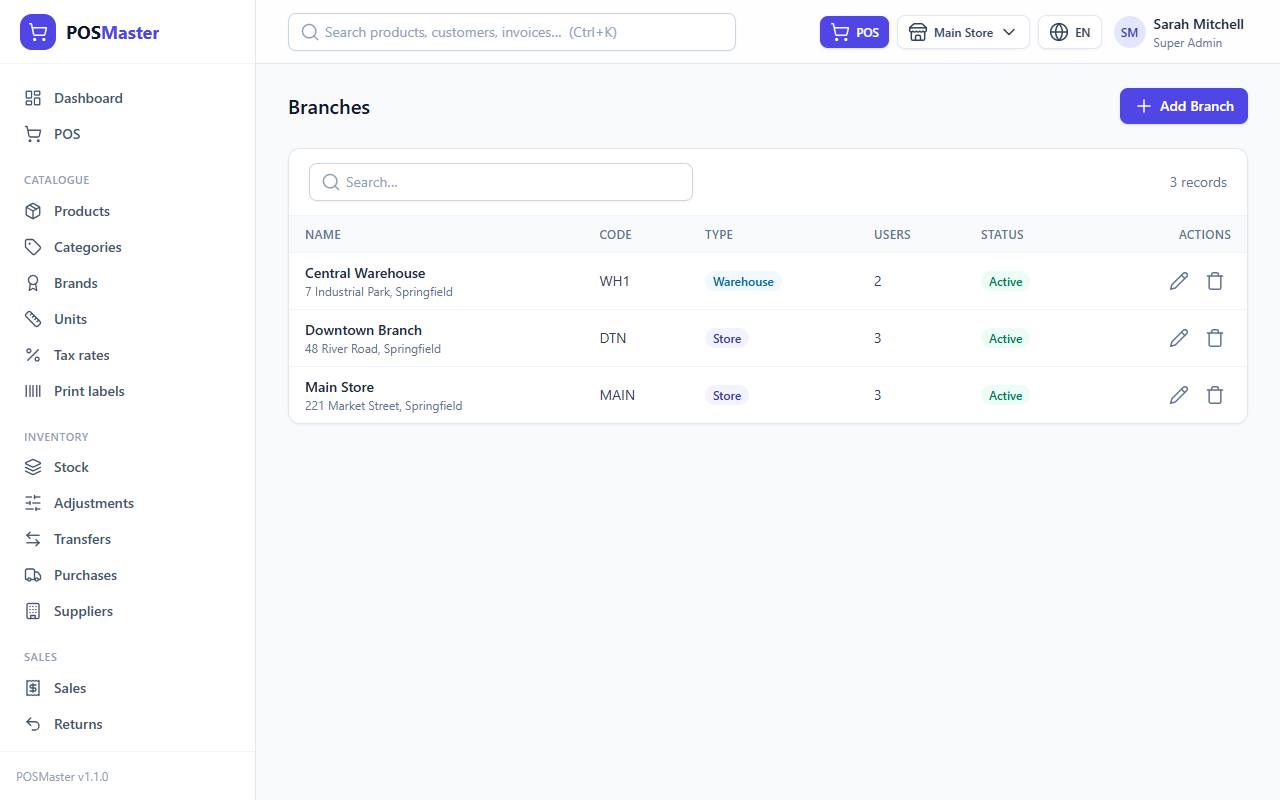
You need branches.create. The list shows the name with its address, the Code, the Type (Store or Warehouse), the number of Users assigned and the Status. You can search by name, code or phone.
Tip: To stop using a branch, untick Active instead of deleting it. An inactive branch disappears from the branch switcher and from reports, but all its sales and stock history stays safe.
Who sees which branch
- Super Admin and Admin see every active branch. You do not need to assign branches to them.
- Everyone else (Manager, Cashier, custom roles) sees only the branches ticked on their user account. To change this, go to Users, edit the user and tick the branches under Access → Branches. See Users, roles and permissions.
- A user with no branch assigned has no branch to work in, so always assign at least one.
Switch the active branch
The active branch is the one you are working in right now. Its name is shown in the top bar.
- Click the branch button (store icon and name) in the top bar.
- Choose another branch from the list. Warehouses carry a "Warehouse" tag.
The page reloads in the new branch. The app remembers your choice for your next login. If you only have one branch, you can still use the button, but there is nothing to switch to.
Which data belongs to a branch
Everything below is saved in the active branch and listed only for that branch:
- stock levels and stock movements,
- sales and returns,
- purchases,
- expenses,
- quotations,
- held (parked) POS sales.
These are shared by all branches: products, categories, brands, units, tax rates, customers, suppliers, coupons, gift cards, loyalty points and users.
Two more things to know:
- Moving stock between branches is done with a stock transfer (from one branch to another), never by editing quantities by hand.
- Promotions can be limited to chosen branches in their form. Leave all boxes empty to apply the promotion everywhere.
Reports and branches
Every report has a Branch filter. Choose All branches to add up all the branches you may access, or one branch to look at it alone. The Branch comparison report puts all branches side by side.
Edit or delete a branch
- Click the pencil icon to change any field (
branches.edit). - The trash icon deletes a branch after a confirmation (
branches.delete). Deleting is hidden and blocked in demo mode. Prefer switching Active off.