Dashboard
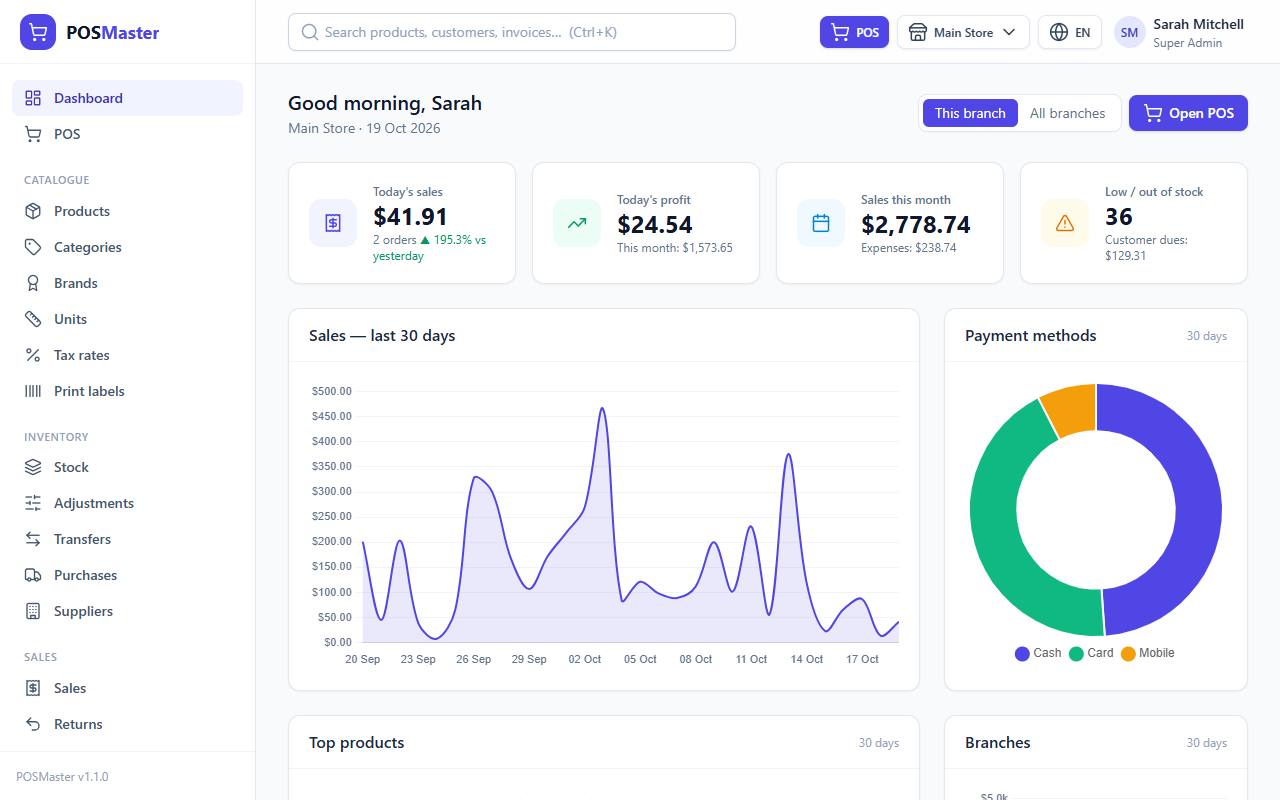
The dashboard is the first page you see after you log in. It shows how your shop is doing today, this month and over the last 30 days. You can reach it at any time from Dashboard in the left menu.
Note: You only see the dashboard if your role has the dashboard.view permission. Cashiers often start in the POS instead. Ask your manager to change your role if you need more access (see Roles & permissions).
What the dashboard shows
At the top you see a greeting ("Good morning, Sara") and the name of the branch you are looking at, with today's date. The Open POS button takes you straight to the point of sale.
The four KPI tiles
| Tile | What it shows |
|---|---|
| Today's sales | Total of all sales made today, the number of orders, and a green ▲ or red ▼ percentage compared with yesterday. |
| Today's profit | Today's profit (sales minus tax and minus the cost price of the items sold). Below it you see This month profit. |
| Sales this month | Total sales from the 1st of the month until now, and your Expenses for the month. |
| Low / out of stock | How many products are at or below their low stock alert level. Below it you see Customer dues, the total still owed by customers. Click the tile to open the Stock page already filtered to low stock. |
Voided sales are never counted.
The charts
- Sales — last 30 days - a line chart with one point per day.
- Payment methods - a doughnut chart that shows how customers paid in the last 30 days (cash, card, mobile, bank, gift card, points).
- Top products - a bar chart of the best sellers by revenue in the last 30 days.
- Branches - a bar chart that compares the sales of all the branches you can access.
Hover over a chart to see exact numbers.
Recent sales and low stock
Under the charts you find two lists:
- Recent sales - the last 8 invoices with customer, time, total and payment status. Click an invoice number to open it. View all opens the Sales list.
- Low stock - the products that need re-ordering first, with the current quantity and the alert level (for example 3 / 5). View all opens the stock page.
This branch or All branches
If you can work in more than one branch, a small switch appears at the top right of the dashboard:
- This branch - figures for the branch you are working in now.
- All branches - figures added up for every branch you have access to.
If you only have one branch, the switch is hidden. The Branches chart always compares all your branches.
Change the branch you work in
The branch name is shown in the top bar (store icon). To work in another branch:
- Click the branch name in the top bar.
- Click the branch you want. Warehouses are marked with a Warehouse badge.
The page reloads for the new branch. Stock, sales, purchases and the POS always follow the branch you picked here. You can only choose branches that your administrator gave you access to.
Warning: You cannot sell from a warehouse. Switch to a store branch first. See Warehouse branches cannot sell.
Switch between light and dark mode
Click the moon button in the top bar, next to the language button, to switch to dark mode. In dark mode it shows a sun: click it to go back to light mode.
- Your choice is remembered in this browser, on every page and in the POS. Other computers keep their own choice.
- Receipts, invoices, PDFs and printed reports always print in light colours.
- The customer display keeps its own look.
Change the language
When more than one language is active, a language button (for example EN) appears in the top bar.
- Click the language button.
- Choose a language from the list.
Your choice is remembered for your account. Administrators can add languages under Languages.
Arabic and right-to-left
Arabic (and any other right-to-left language) flips the whole screen: the menu moves to the right, tables read from right to left and amounts keep their correct order.

Search everything (Ctrl+K)
The search box in the top bar finds products, customers, suppliers, invoices and quotations at the same time.
- Press Ctrl+K (or Cmd+K on a Mac). The cursor jumps into the search box.
- Type a few letters of a product name or SKU, a customer name or phone number, or an invoice number.
- Results are grouped (Products, Customers, Suppliers, Invoices, Quotations). Use the arrow keys and Enter, or click a result, to open it.
You only see the groups your role is allowed to open. The search box is hidden on small screens; open the menu with the ☰ button instead.
Demo mode banner
If your administrator turned on demo mode, you see:
- a yellow Demo mode badge in the top bar, and
- a yellow box on the dashboard that says you can explore and create records, but deleting and changing sensitive settings is disabled.
In demo mode all Delete buttons are hidden and the server refuses delete requests. Some demo servers also reset their data every night. Do not enter real customer data on a demo site.
Forced password change
After a fresh SQL install, a red box asks you to Change password. You are still using the default password from the installer. Click the button and set your own password in your profile.