Quotations
A quotation is a price offer you give a customer before they buy. It does not touch your stock and it is not a sale. When the customer says yes, you turn it into a real sale in the POS with one click.
Open Sales → Quotations in the sidebar to see the list.
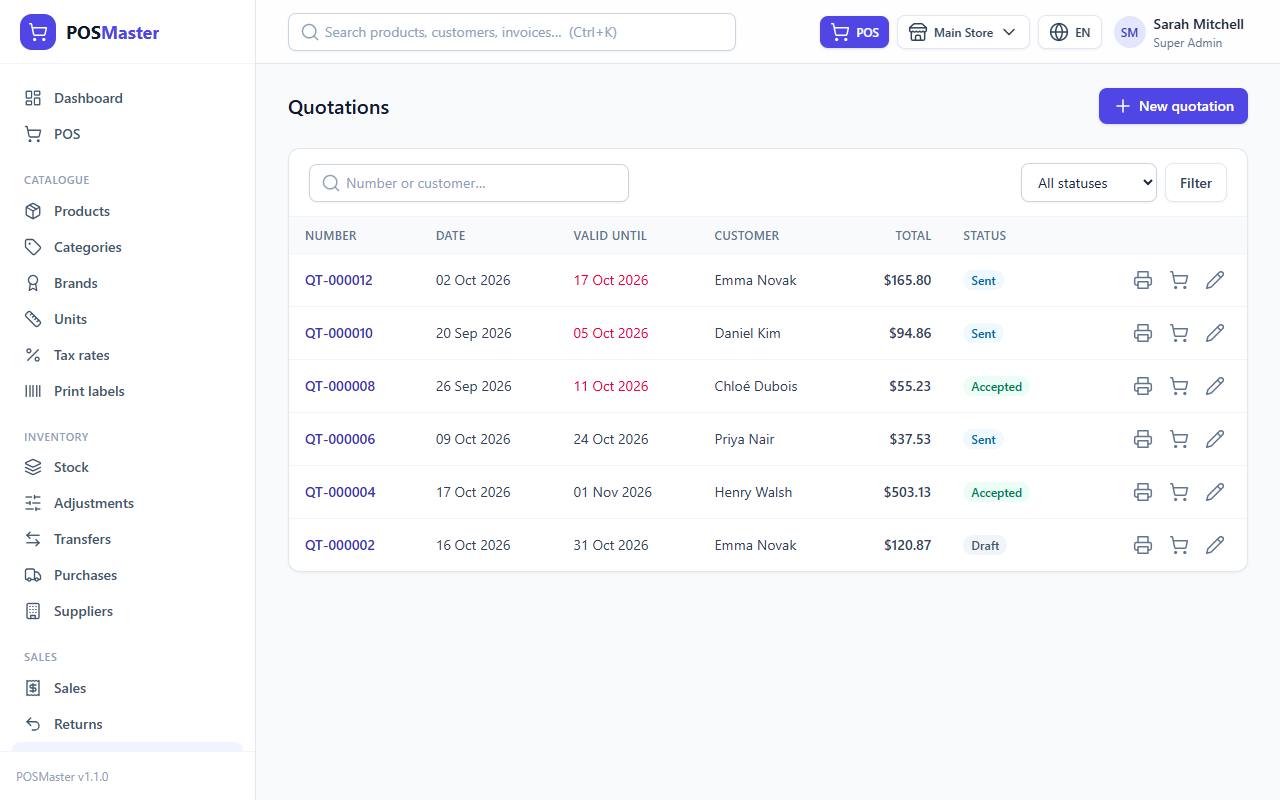
How quotations work
- A quotation belongs to the active branch. You only see the quotations of the branch you are working in (switch branch in the top bar).
- It has a number such as
QT-000001. The prefix comes from Settings → Sales & receipts → Quotation prefix. - It has one of four statuses:
| Status | Meaning |
|---|---|
| Draft | You are still preparing it. |
| Sent | You gave or sent it to the customer. |
| Accepted | The customer said yes, but the sale is not made yet. |
| Converted | It was turned into a sale in the POS. The invoice number is shown on the quotation. |
- You choose Draft, Sent or Accepted yourself. Converted is set automatically when the sale is completed.
- Stock is only reduced when the sale is completed in the POS, never by the quotation.
Create a quotation
- Click Quotations in the sidebar, then New quotation.
- In the box Scan barcode or search product to add…, type a product name or SKU, or scan a barcode. Click the result to add it to the table.
- For each line you can change the Unit, the Qty and the Discount. The line discount is a fixed amount for the whole line.
- In the right-hand panel, pick the Customer. Start typing the name and choose from the list. You can leave it empty for an anonymous offer.
- Check the Date (today by default) and Valid until (15 days from today by default). Valid until must not be earlier than the date.
- Choose the Status: Draft, Sent or Accepted.
- Optional: enter an Order discount (a fixed amount taken off the whole quotation) and a Note / terms, for example "Delivery within 3 days".
- Watch the Subtotal, Tax and Total update as you type. The server calculates the final numbers when you save.
- Click Save quotation.
You need the permission quotations.create. Without it you do not see the New quotation button.
Tip: Prices, tax rates and units come from the product. You cannot type a custom price on a quotation line. Use the line Discount to give a special price.
Note: A quotation needs at least one product. If you save with an empty table you see "Add at least one product."
Edit a quotation
- Open Quotations and click the pencil icon on the row, or open the quotation and click Edit.
- Change the lines, customer, dates, status or note.
- Click Save quotation.
You need quotations.edit. A quotation that is already Converted cannot be edited.
Print a quotation
- Open the quotation, or find it in the list.
- Click Print (the printer icon in the list). A clean page opens in a new tab with your business name, address, the customer, the lines, the totals and the notes.
- Use your browser print dialog.
To send the quotation to the customer, open it and click PDF to download an A4 PDF, or Email to send that PDF straight to the customer. See PDF and email.
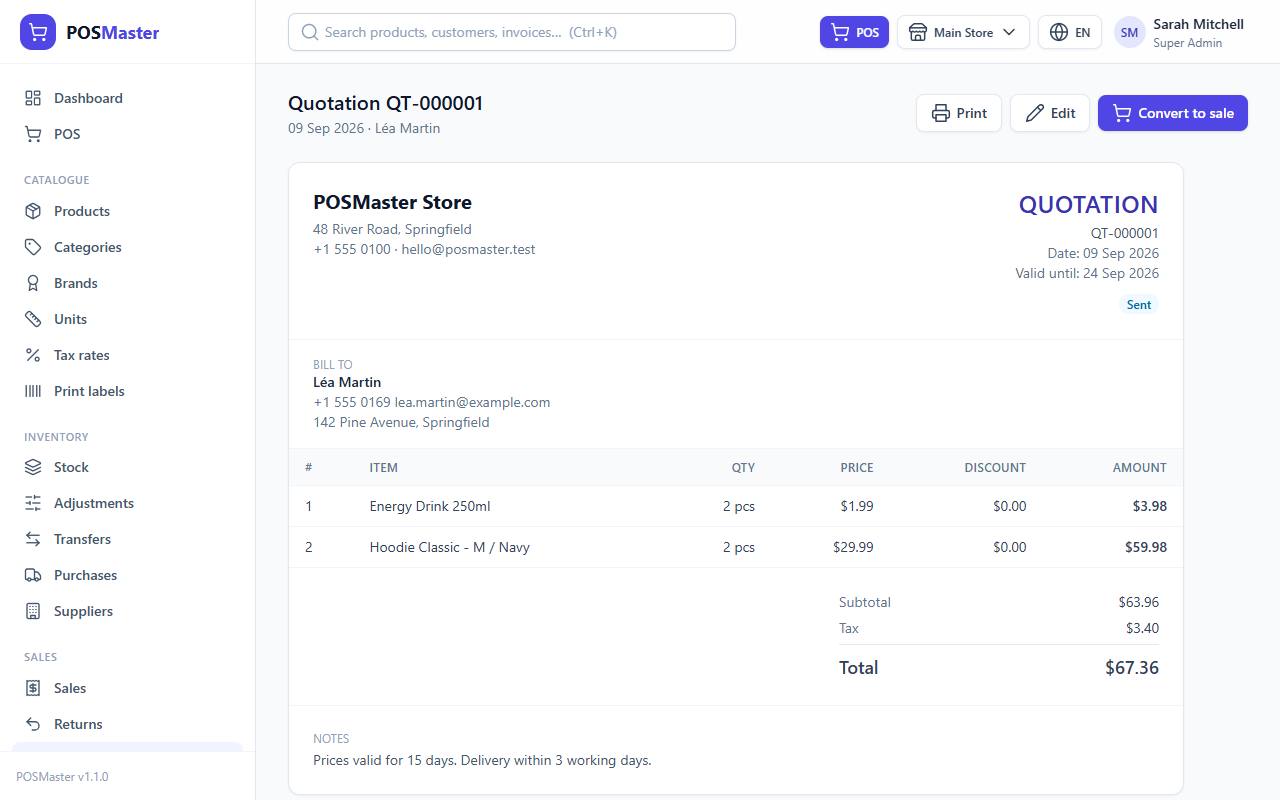
Convert a quotation to a sale
- Open the quotation, or find it in the list.
- Click Convert to sale (the cart icon in the list). You need the
pos.accesspermission. - The POS opens with the quotation's products and its customer already in the cart. A small message shows the quotation number.
- Check the cart. You can change quantities or add products, as in any sale.
- Take the payment as usual and click Complete sale.
- The quotation changes to Converted and links to the new invoice.
What happens to prices:
- The cart is calculated again by the POS with today's prices and today's promotions. If a promotion is running now, it is applied, even if it did not exist when you wrote the quotation.
- Only the manual line discounts from the quotation are carried over. The quotation's order discount is not carried over; add an order discount in the POS if you still want it.
- Stock rules still apply. If a product is out of stock and negative stock is not allowed, the POS will not sell it.
Warning: The "Valid until" date is information for your customer. The app does not block a conversion after that date. In the list, the date turns red when a quotation is past its validity and not yet converted.
Find a quotation
- Type a quotation number or a customer name in the search box.
- Use the status filter (All statuses, Draft, Sent, Accepted, Converted) and click Filter.
- You can also use the search box at the top of every page; it finds quotations too.
Permissions
| Permission | What it allows |
|---|---|
quotations.view |
See the list, open and print quotations |
quotations.create |
Create quotations |
quotations.edit |
Edit quotations that are not converted |
quotations.delete |
Listed in the permission matrix (the screens have no delete button for quotations) |
pos.access |
Needed to see Convert to sale |