Languages
POSMaster speaks English, French and Arabic out of the box. Arabic switches the whole app to right-to-left (RTL). You can add any other language yourself, without a developer, by translating one text file.
Open Administration → Languages (permission languages.view). By default only the Super Admin has the full set of language permissions.
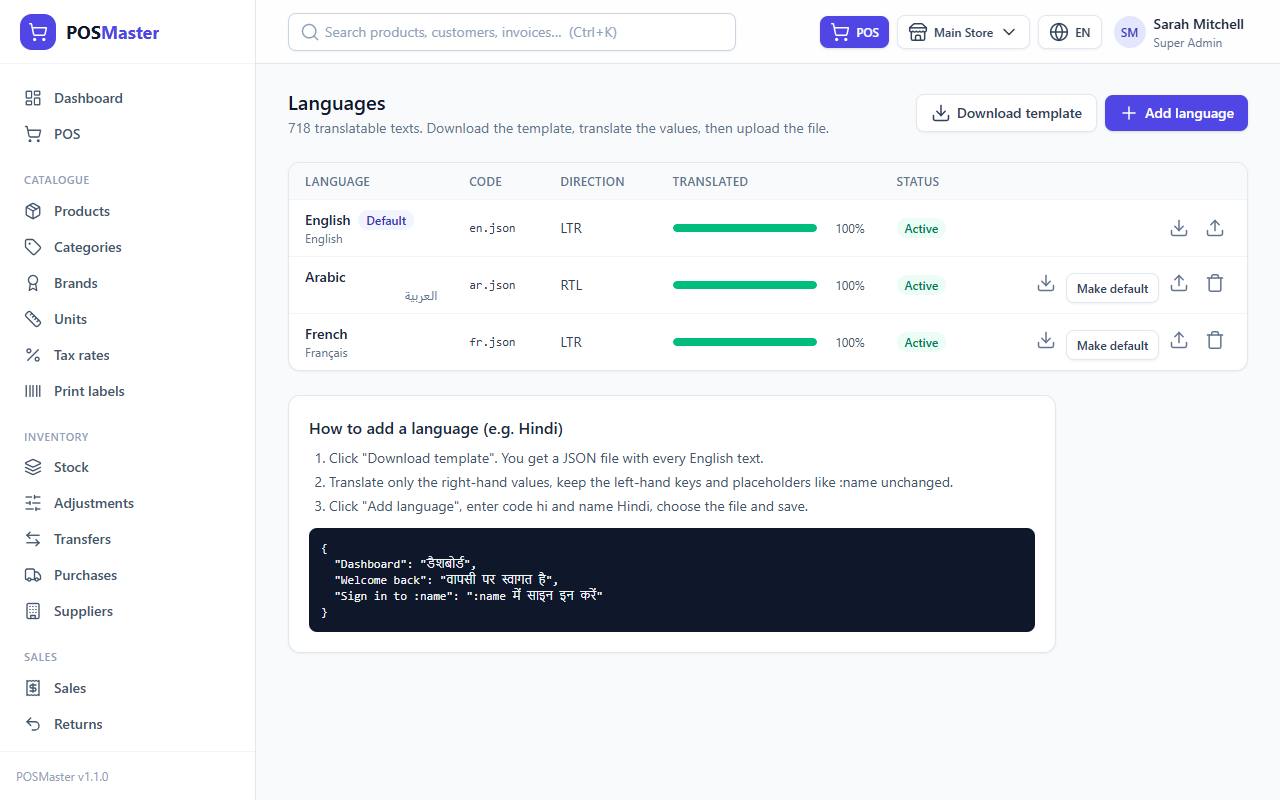
The languages list
Each row is a language:
| Column | Meaning |
|---|---|
| Language | English name, with its native name below. A Default badge marks the default language. |
| Code | The file name, for example fr.json. |
| Direction | LTR (left to right) or RTL (right to left). |
| Translated | A progress bar and a percentage: how many of the app's texts have a translation. Green means 90% or more, orange means less. |
| Status | Active (users can choose it) or Draft (hidden from users). |
The subtitle tells you how many texts there are to translate.
Switch your own language
Anyone can pick a language for themselves.
- Top bar: click the globe button with the language code (for example
EN) and choose a language. The page reloads at once. This button appears when at least two languages are active. - My profile: choose a Language and click Save. See Activity log and your profile.
- Users: an administrator can set a person's language when creating or editing the user.
The language used is, in this order: the one saved on your user account, then the one you picked on the login page or top bar, then the default language of the shop.
Arabic and right-to-left
When you choose Arabic (or any language marked Right to left), the menus, tables, forms and the POS mirror automatically: the sidebar moves to the right, text aligns to the right and arrows flip. Numbers and codes stay readable.
Add a language step by step
The example below adds Hindi. The same steps work for any language.
-
Open Administration → Languages.
-
Click Download template. You get a file named
language-template.jsonthat contains every text of the app. -
Open it in a plain text editor (Notepad++, VS Code, Sublime Text). Do not use Word.
-
Translate the right-hand side of each line. Leave the left-hand side exactly as it is:
{ "Dashboard": "डैशबोर्ड", "Welcome back": "वापसी पर स्वागत है", "Sign in to :name": ":name में साइन इन करें" } -
Keep every placeholder that starts with a colon, such as
:name,:countor:amount. The app replaces them with real values. Do not translate them and do not remove them. You may move them to where they fit your grammar. -
Save the file as UTF-8, with the extension
.json. -
Back in POSMaster, click Add language.
-
Fill in the form:
- Name: the English name, for example
Hindi. - Native name: how the language writes its own name, for example
हिन्दी. - Code: a short ISO code in lowercase, such as
hi,pt,esorbn. You can add a country in capitals after an underscore for regional versions, such aspt_BR. The code must be unique. - Text direction: Left to right, or Right to left (Arabic, Urdu, Hebrew).
- Translation file (.json): choose your file. It is optional; you can upload it later.
- Active — users can choose it: tick it when the language is ready.
- Name: the English name, for example
-
Click Save.

The new language appears in the list with its progress bar and in the top-bar language menu.
Warning: The file must be a JSON object with the format
{"English text": "Translation"}. If you get the message "The file must be a JSON object…", you probably have a missing comma, a missing quote or a trailing comma. Paste your file into a JSON checker to find the error. The maximum file size is 2 MB.
Tip: You do not need to translate everything in one go. Translate the screens your staff use most (POS, sales, customers) and improve the rest later. To be safe, delete the lines you have not translated yet, or copy the English text into them, rather than leaving the value empty
"".
Update or replace a translation
- In the list, click the upload icon (Edit / upload) on the language's row.
- Choose a new file in Translation file (.json). The hint says "Uploading replaces the current file."
- Click Save.
The new file replaces the old one completely, so start from a downloaded copy of the current translation.
Download a language file to edit it
Click the download icon (Download file) on a row. You get the current translation of that language merged with every text of the app. Texts that are not translated yet appear with an empty value so you can see what is missing. Fill them in, then upload the file again as described above.
This is the best way to improve French or Arabic, or to finish a half-done translation.
Make a language the default
The default language is used for visitors and for users who have not chosen a language.
- Click Make default on the row of the language.
- The language gets the Default badge and is activated if needed.
The default language cannot be deactivated or deleted. To change the default, make another language the default first.
Activate, deactivate and delete
- Edit a language (pencil/upload icon) and untick Active — users can choose it to hide it from the menus. Users who had chosen it fall back to the default language.
- You can edit the name, native name and direction of any language. The code of English cannot be changed.
- The trash icon deletes a language, after a confirmation. English and the default language cannot be deleted. Deleting is blocked in demo mode.
Note: Some actions are restricted in demo mode: adding, editing, uploading and making a language the default are blocked for everybody on a locked demo server. The template and file downloads still work.
Checking your translation
After you upload a file, switch to the new language in the top bar and click through the main screens: Dashboard, POS, Sales and Settings. Look for text that is still English, text that is cut off in buttons (long translations need more room) and placeholders that show as :name. Fix the file and upload it again.