Welcome to POSMaster
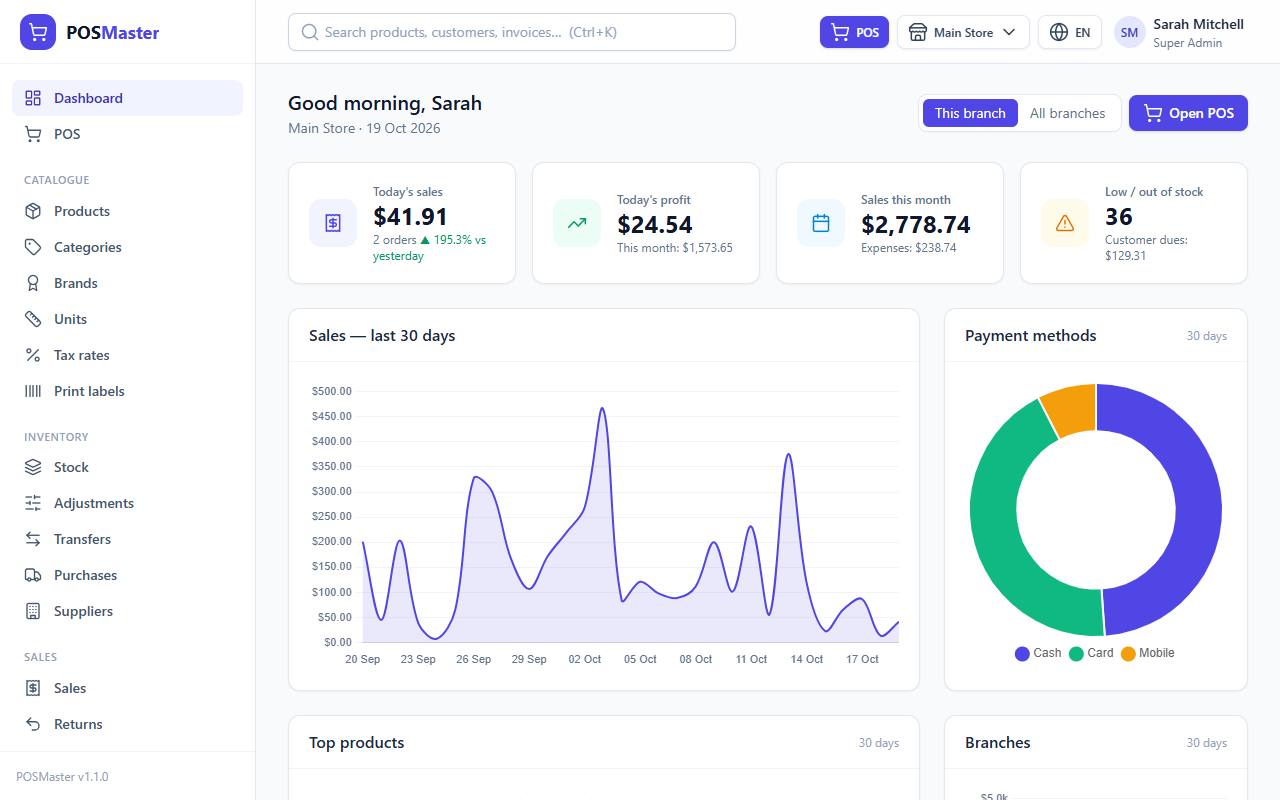
POSMaster is a point of sale and inventory system that runs in your web browser. You use it to sell at the counter, keep track of your stock, buy from suppliers, and see how your shop is doing. It is light and fast, so it works on an old PC, a tablet or a phone, and it runs on ordinary web hosting.
What POSMaster can do
- Sell fast. Scan a barcode with a USB or Bluetooth scanner (or the device camera), or search by name. Hold a sale and resume it later, take split payments, and print receipts on 58 mm, 80 mm or A4 paper.
- Keep selling offline. If the connection drops, the POS keeps selling with cash or card and syncs the sales when it is back. See Offline mode.
- Customer display and kitchen tickets. Show the cart and total on a second monitor facing the customer, and print prep tickets with notes for the kitchen or bar.
- Several shops and warehouses. Each branch has its own stock. Move stock between branches and switch the active branch with one click.
- Products your way. Single products, products with variants (size, colour), several units (piece, box of 12, kg and g), automatic EAN-13 barcodes, QR codes, CSV import and export, and barcode or QR label printing.
- Selling tools. Coupons, gift cards, loyalty points, automatic promotions, line and order discounts, quotations that turn into sales, returns and voids.
- Stock and purchasing. Purchases from suppliers with partial payments, returns to suppliers, stock adjustments, a full stock movement history and low-stock alerts.
- PDF and email. Download invoices, quotations, purchases and returns as A4 PDFs and email them, or email the receipt straight from the POS.
- Reports with charts. Sales, profit and loss, stock value, taxes, cashiers, payment methods and more. Every report can be filtered by date and branch, exported to CSV and printed.
- Admin panel. Users, roles with a permission matrix, branches, an activity log and a settings screen for everything from your logo to your currency format.
- Your language. English, French and Arabic (right to left) are included. You can add more by uploading a translation file.
- Demo mode. A safe mode for showing the system to others. Nothing can be deleted while it is on.
Who this guide is for
- Shop owners and managers who install POSMaster and set up the shop. Start with the installation pages and First steps after installing.
- Cashiers who only sell. Go straight to Point of sale (POS).
- Web developers or IT helpers who install it on a server. See the install pages for hosting, SQL import and Docker.
You do not need to know how to code to use POSMaster. The installation pages explain each step, including ways to install without a terminal.
Where to start
- Install on your computer: XAMPP, WAMP, Laragon or MAMP. Best for trying it out.
- Install on web hosting: cPanel shared hosting or your own VPS.
- Install by importing SQL: no terminal needed, just phpMyAdmin.
- Install with Docker: one command to start the app and the database.
- First steps after installing: set up your shop in about 10 minutes.
- Point of sale (POS): make your first sale.
- Settings: every setting explained.
- Troubleshooting: fixes for the most common problems.
Tip: Not sure which install to choose? Use Install on your computer to try POSMaster with demo data. When you are happy, install it again on your real server.
Demo accounts
If you installed with demo data (or you open a public demo), the login page lists these accounts. Click one to fill in the form.
| Role | Password | |
|---|---|---|
| Super Admin | superadmin@posmaster.test | password |
| Admin | admin@posmaster.test | password |
| Manager | manager@posmaster.test | password |
| Cashier | cashier@posmaster.test | password |
| Demo (read and create, no delete) | demo@posmaster.test | password |
Note: If you installed a clean shop with
database/schema.sql, the only account is admin@example.com with the password ChangeMe-123. A red banner reminds you to change it. See Install by importing SQL.
Keyboard shortcuts
On the POS screen:
| Key | What it does |
|---|---|
| F2 | Jump to the product search box |
| F4 | Jump to the customer box |
| F8 | Hold the current sale |
| F9 | Open the payment window, and press it again to complete the sale |
On this help site, press Ctrl+K to search the guide.
Getting help
If something does not work, open Troubleshooting. Many questions are also answered in the FAQ. The Help link in the top bar of the app opens this guide at any time.